
The Compose Box
What is the Compose Box and how do I use it?
The Compose Box is an important component of Echobox Social when it comes to manual sharing.
It’s where you can ensure your content is shared exactly as you want it, from editing your share message to choosing the share time.
This article will provide you with an overview of the most important features of the Compose Box, and how they can help you.
The most common way to open the Compose Box (Fig. 1) is by clicking the Share button on a piece of content in your Home feed.
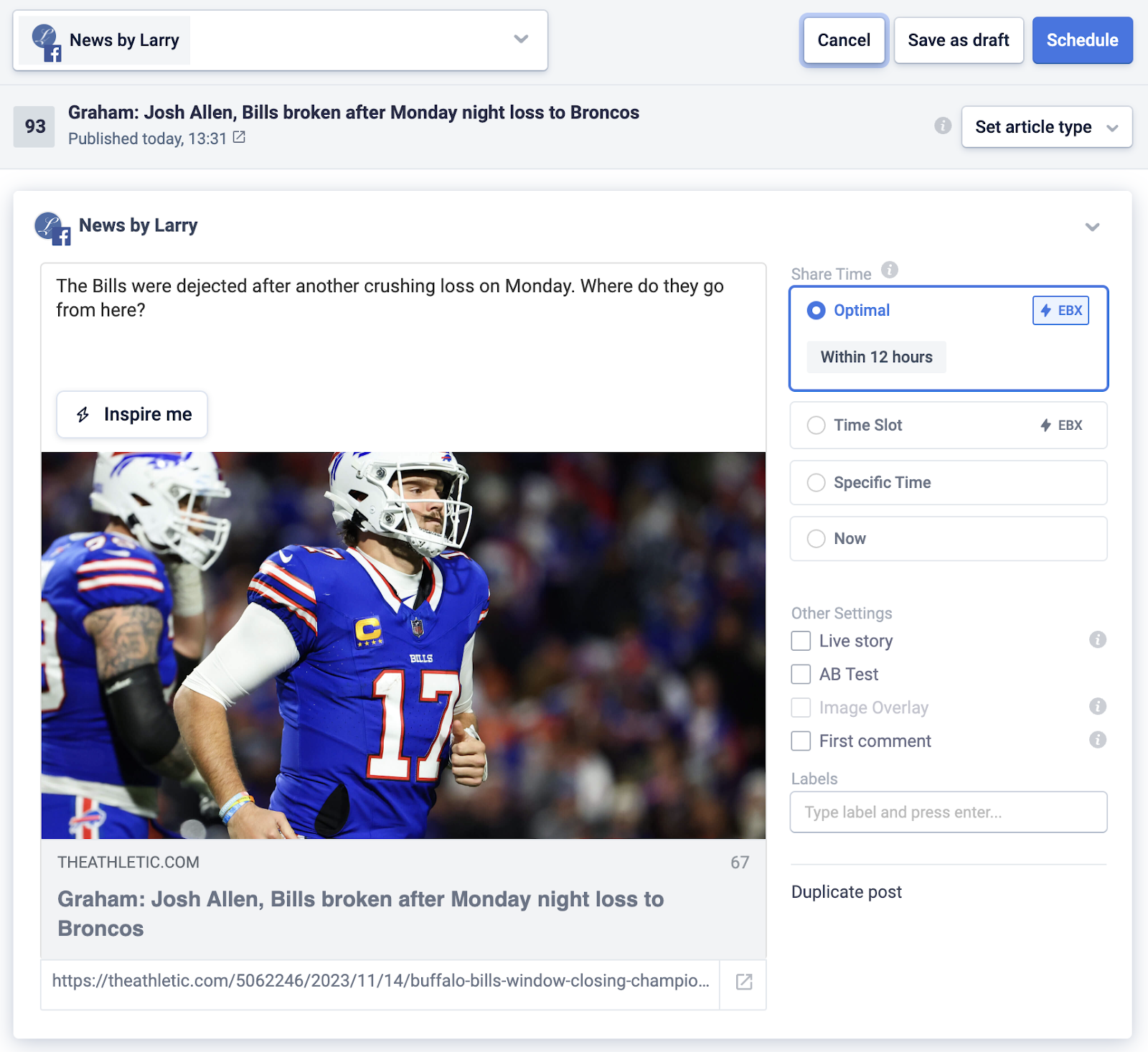
Fig 1: The Compose Box
The top bar tells you which Page you are sharing to (Fig. 2). You can select multiple pages across different social media platforms and from any of your Properties.
If you are sharing across multiple social networks, you can configure the post for each one, as the Compose Box has some platform-specific features.
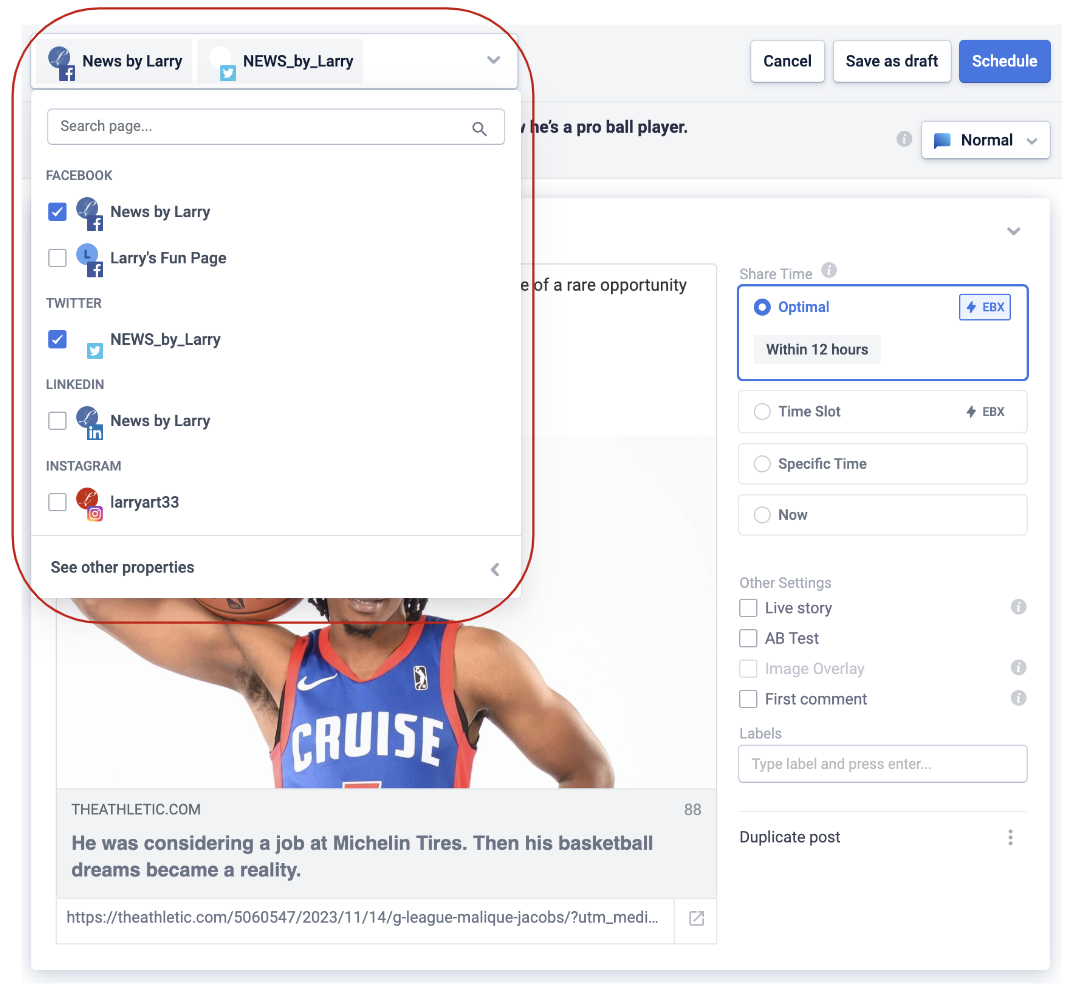
Fig 2: Select the pages you want to share to.
The right-hand side of the top bar is where you can schedule the share - or save it for later or cancel it altogether (Fig. 3).
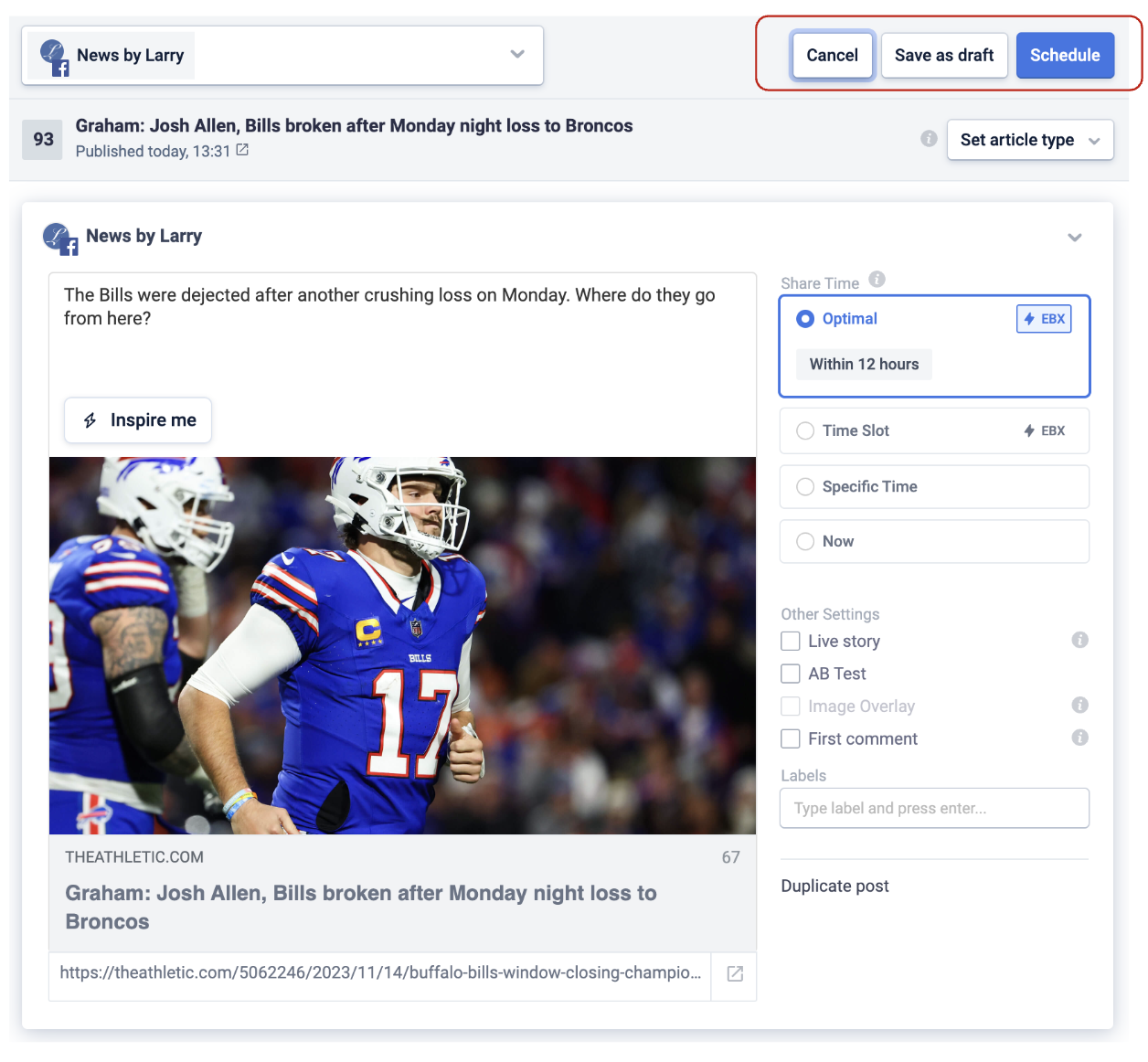
Fig 3: Confirm your changes, cancel, or save as draft to revisit later
Just below the top bar, you will find some basic information about the piece of content (Fig. 4), including the title, when it was published to your RSS feed and its virality score. This is a number between 1 and 100 that indicates how likely this piece of content is to be popular among your audience at this moment.
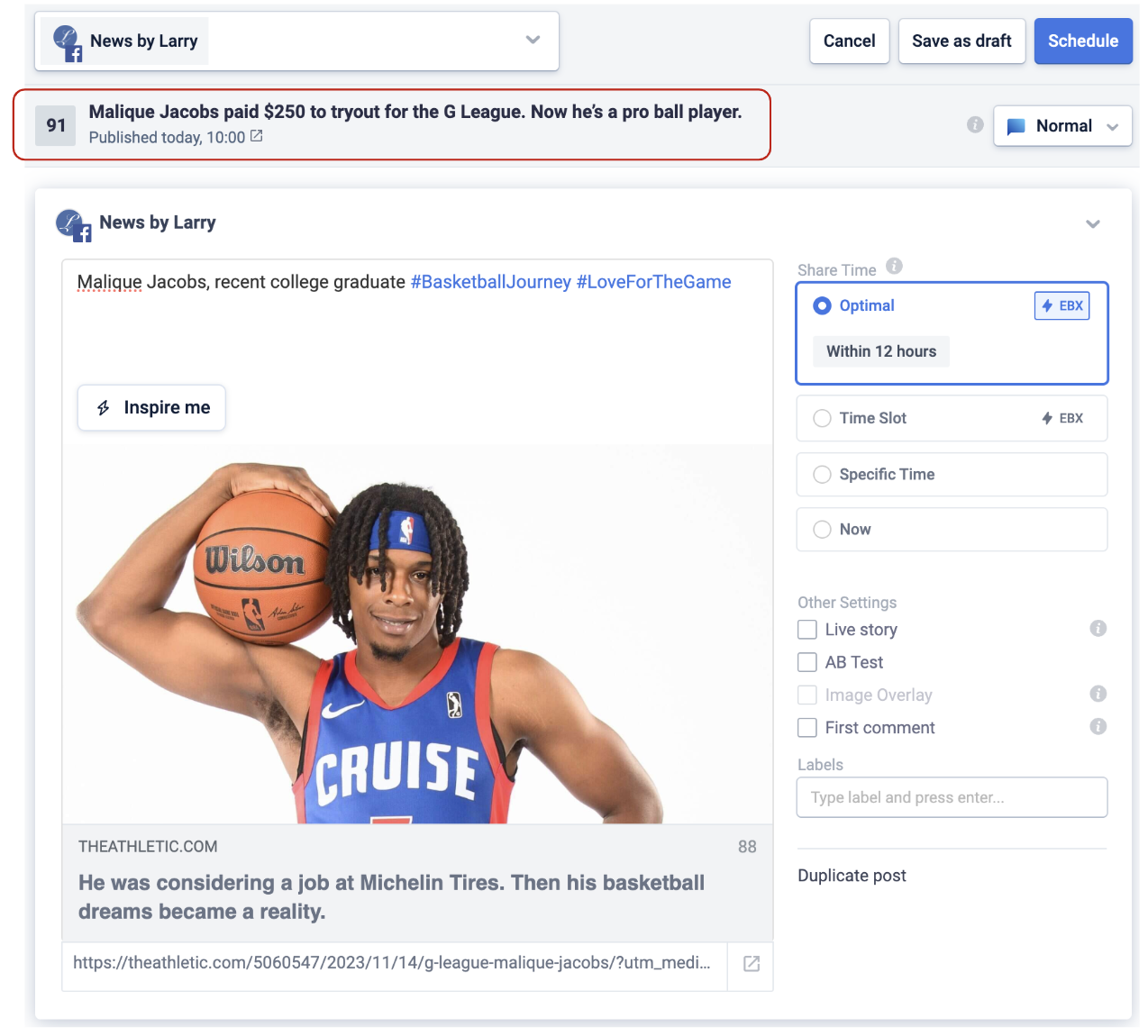
Fig 4: Basic content information and the article’s virality score
On the right-hand side, you’ll see the Time Sensitivity classification (Fig. 5). This falls into one of three categories - Normal, Breaking, or Evergreen. This is another one of Echobox Social’s smart features and gets automatically populated for you. However, you can always change the classification if you wish.
The classification determines the time frame in which the share can be made (if you choose the Optimal share time setting), and also whether the platform should consider it for resharing. For more detailed information see the Time Sensitivity article.
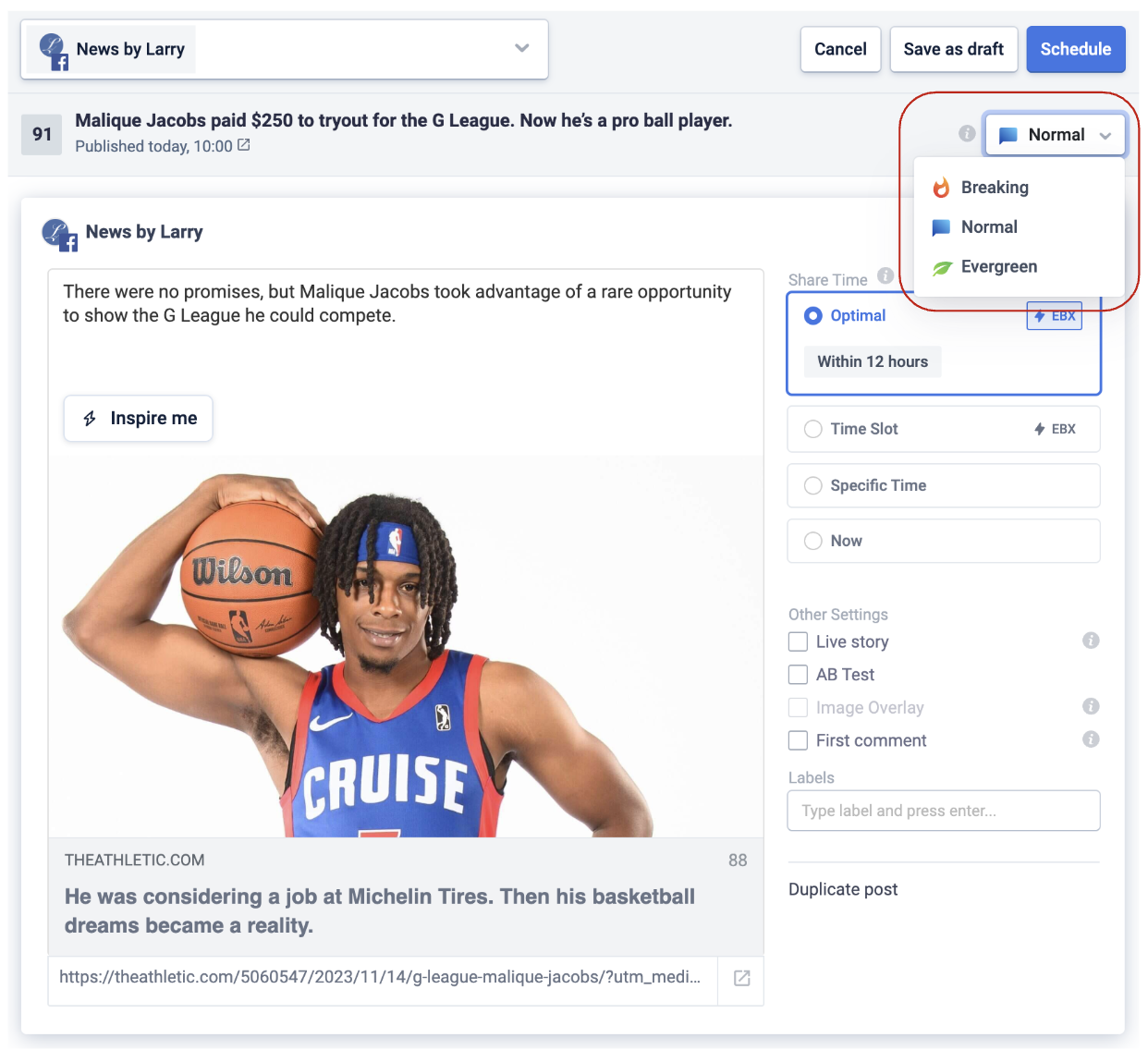
Fig 5: Content type classification
When you open the Compose Box, you will find it pre-populated with a default share message of your choice (you can change this in your Page settings). You can, of course, choose to use your own custom share message or make use of the Inspire me button (Fig. 6), which uses the latest generative AI technology and creates a unique description in your writing style within seconds. You can also add tags, emoji and hashtags.
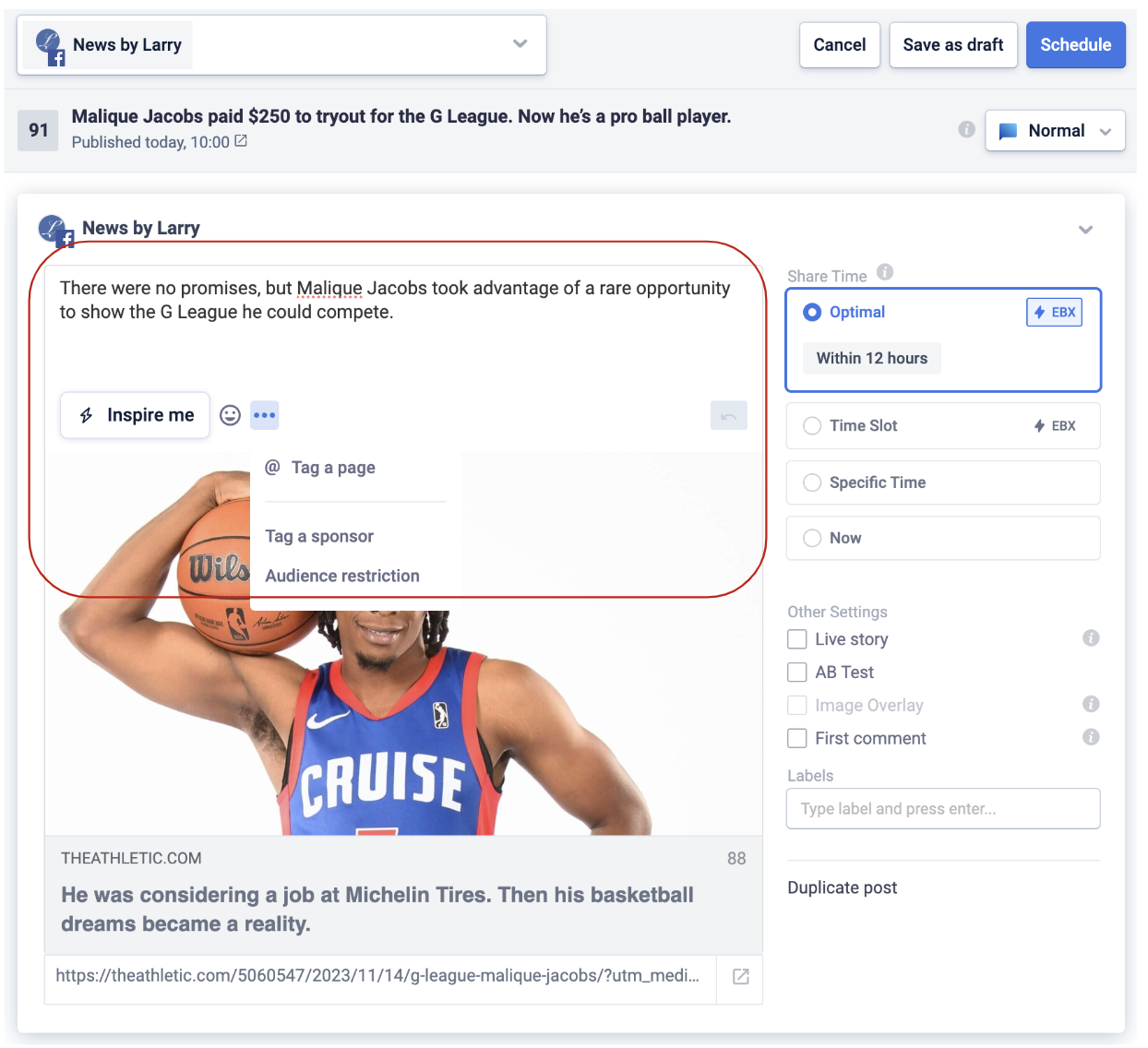
Fig 6: Post description
You can also customize the share image. By clicking on the image, you can choose to crop, edit, or upload a new image for the share (Fig. 7).
Note that Facebook rules mean that to use this feature you’ll need to have set up Facebook Domain Verification .
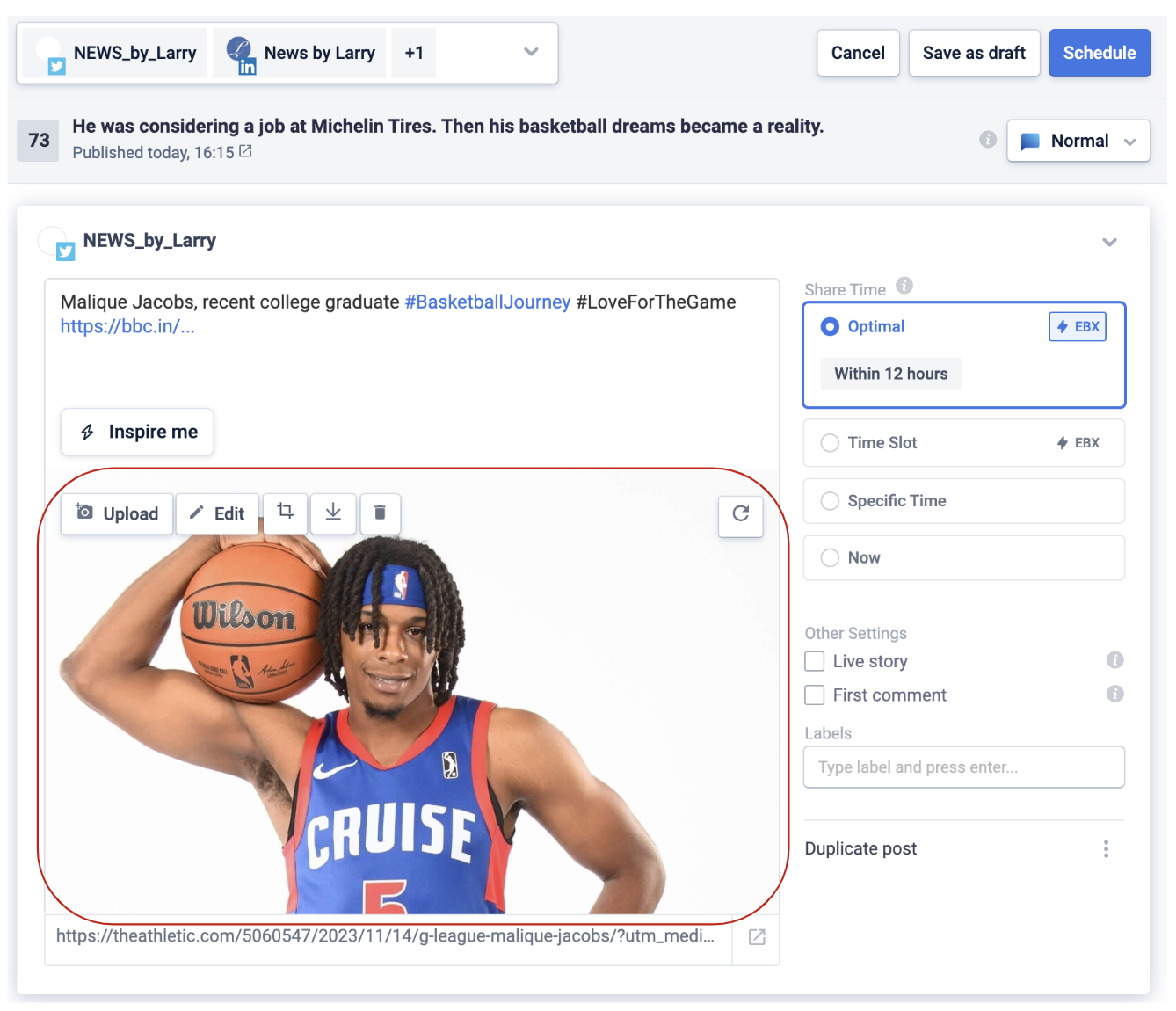
Fig 7: Image edit options
Timing is a key decision when sharing content, and there are several options available within the Compose box (Fig. 8).
You can use Echobox’s smart time optimisation feature by choosing the Optimal or Time Slot options.
If you choose Optimal, your share will go out at the best moment within a timeframe we calculate based on the Time Sensitivity of the content. If you choose the Time Slot option, Echobox will choose the best moment within the time frame you choose.
Of course, you can also set a specific time yourself or, if your content needs to be shared as soon as possible, choose Now.
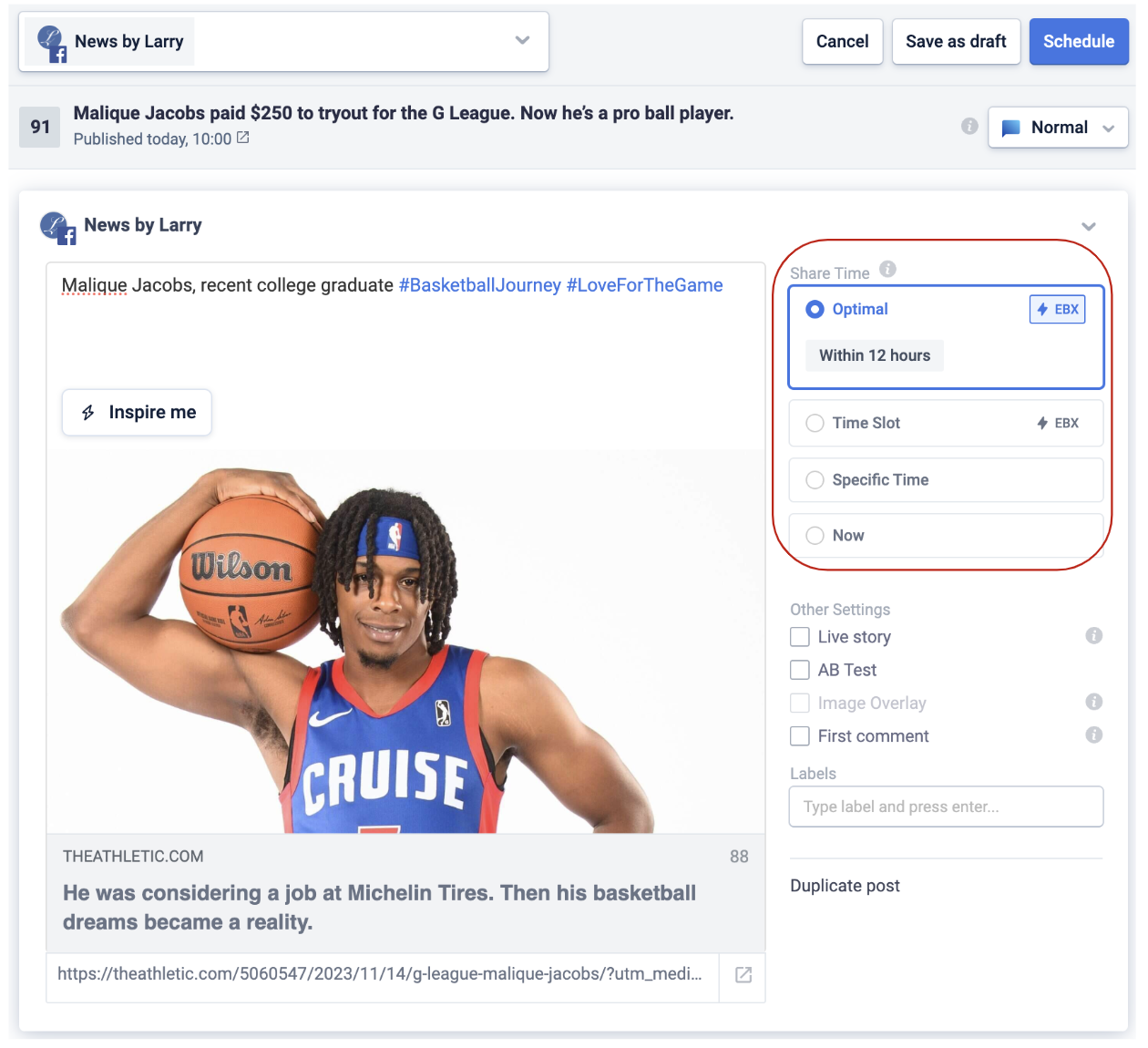
Fig 8: Share time options
Last but not least, there is the Other Settings section. Some of these are features specific to a particular social network, but the following two are available across networks.
First, you can specify that the piece of content in question is a Live story, i.e. one which is likely to change or evolve over time (e.g. a reporter might be adding continuous updates to a crime investigation or a sports match). This is available for all networks except for Instagram.
Ticking Live story ensures the latest title, image, and description will be used at the point of share, rather than what Echobox saw when the content was first published.
Second, you can choose to include a first comment of your choice with the post, which is known to improve the reach of a post. The first comment feature is available for all except video shares.
Facebook-specific Compose Box features
If you are posting to Facebook, you have a few additional options (Fig. 9).
You can AB test a post to learn more about your audience’s preferences. If you choose this, you can switch in a drop-down list between Version A and Version B and edit each version. There are specific parts of a share you can vary as part of an AB test, namely the share message, article title, article description, share image, share video (in case of a video post), and the image overlay. Echobox will then show each version of the post to a selected group of users, and after a short time proceed to show the winning version to your entire audience. You can find the results of all your AB tests in your Analytics tab. For more information about AB testing best practices see this article .
You can further apply an image overlay for your Facebook shares, if you have set one up in your Page settings. Publishers often use this so they can apply their logo or a "breaking news" line to share images.
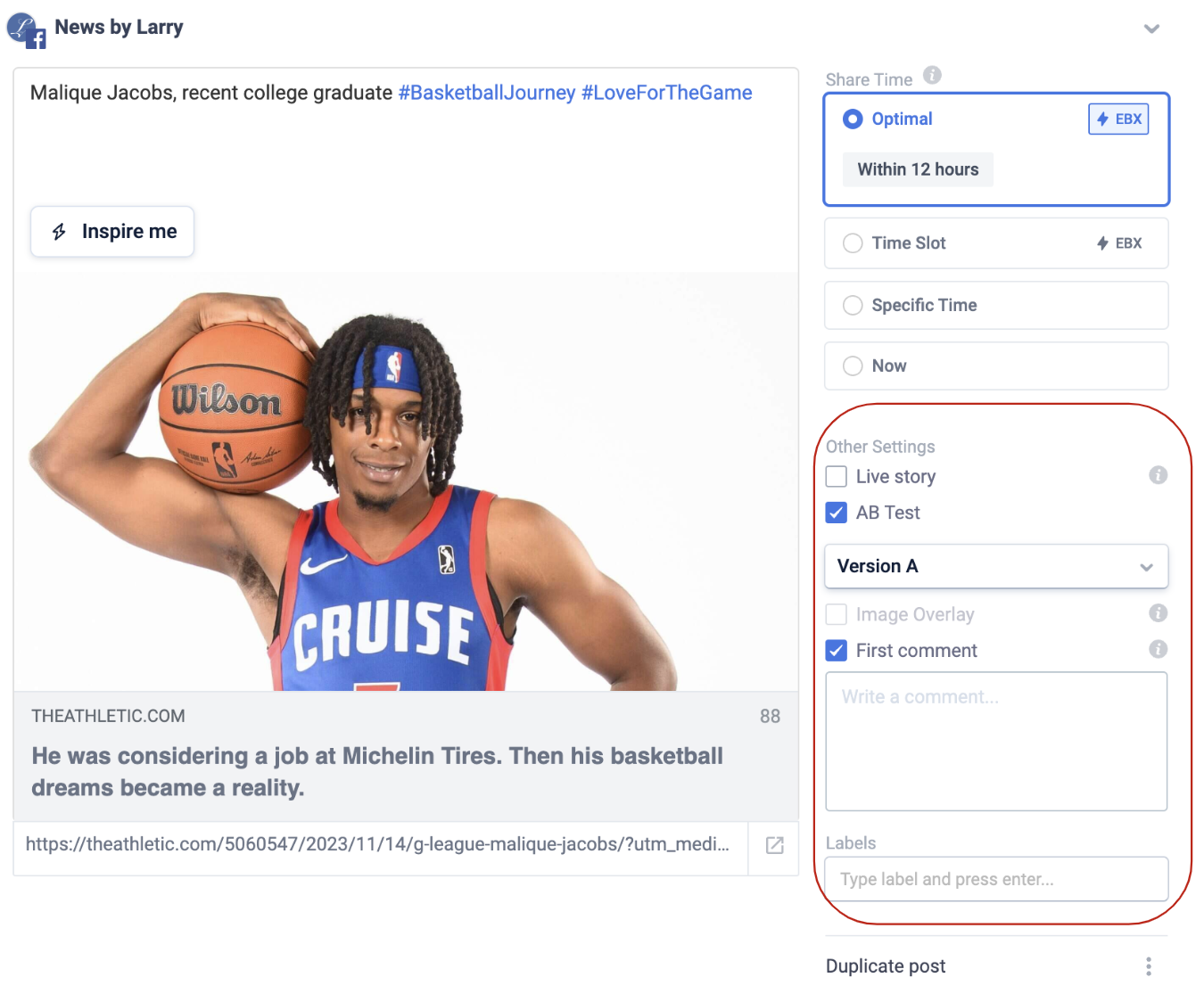
Fig 9: Other Settings for Facebook
Instagram-only Compose box features
The Compose Box appears slightly differently for Instagram Pages because it gives you a choice of how your content will be shared (Fig. 10).
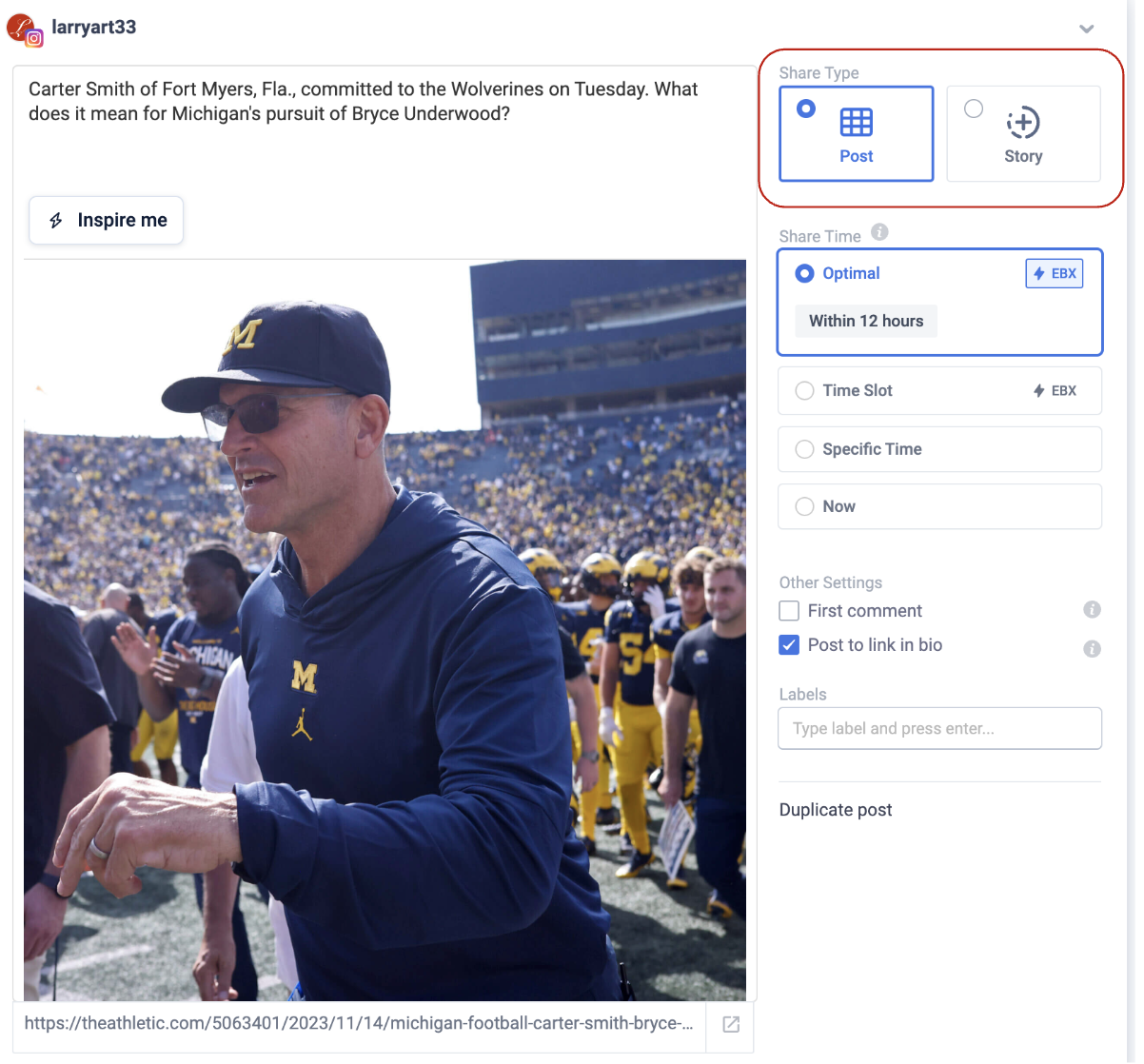
Fig 10: Compose box for Instagram
When opening the Compose Box for an article from your Home feed, you will see the option to share the share image to Instagram as a Feed Post or a Story.
You will also see the option to Post to link in bio, which when selected will ensure the content is shared to your Echobox Link in Bio page at the same time it goes to Instagram. Learn more about Echobox Link in Bio for Instagram.
You may also invite a collaborator to an Instagram share. This will send an invite to the chosen account - if accepted, the share will be shown to both your followings.