New to Echobox Email? Start here
Welcome to Echobox Email! This page runs through everything you’ll need to get up and running, and start sending your first Editions.
- Before you start
- Create your Property/Campaign
- Customize your template
- Choose your Automation & Personalization settings
- Upload your audience
- Start sending 🚀
Before you start
Echobox works by selecting the content that your individual subscribers are most interested in, and using that to automatically create and send email newsletters.
In order to do this, you will need the following:
Content feeds
In order to ingest articles from your website, you will need to connect content feeds to Echobox, any of RSS, XML, ATOM feeds or a sitemap. This allows Echobox to see when new articles are published, and whether they should be included in your newsletters.
See here for more information.
Access to DNS settings
Echobox uses AWS for sending emails through our platform. In order to send emails from your own domain (e.g newsletter@thenews.co.uk ), we will require you to complete DKIM, SPF and DMARC protocols. This allows us to send emails on your behalf, and helps ensure that you have a strong deliverability.
See here for more information.
Emails to send from
An email address that you will use for sending Editions and receiving replies:
- From email - the email address that you will use to send Editions
- Reply-to - An address for any replies
- Return path - The place to which any bounces will be redirected (not your regular inbox)
Create your Property/Campaign
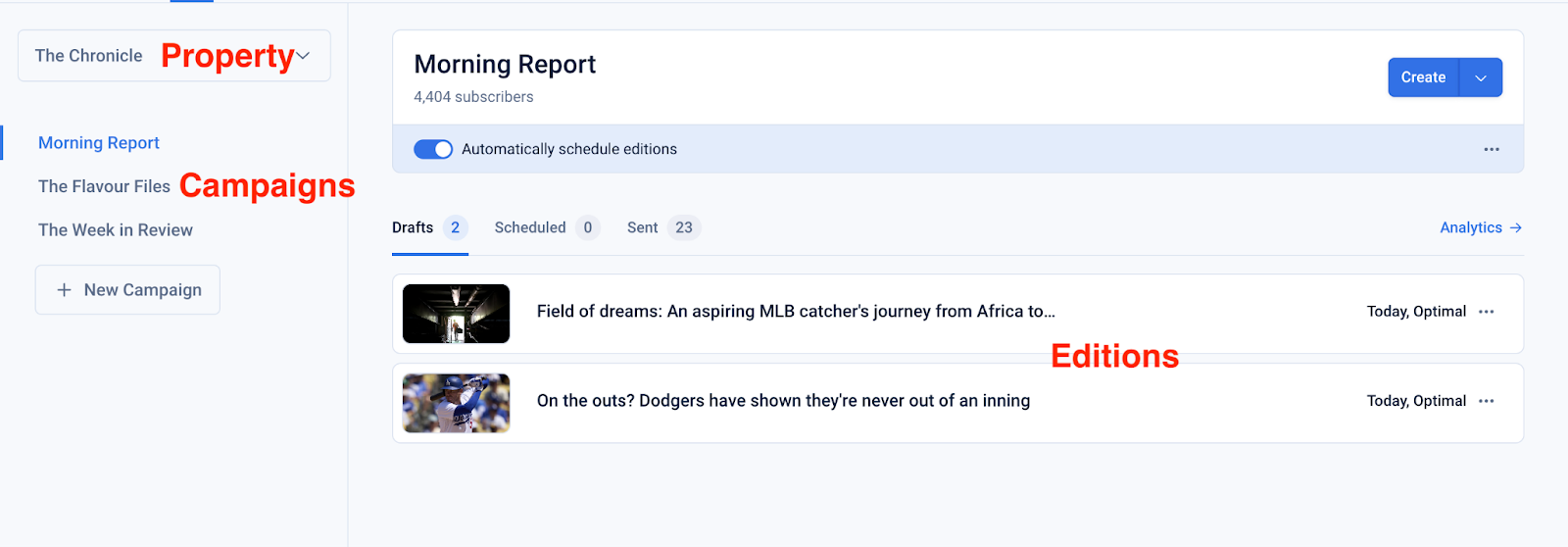
When you first sign up to Echobox, you will be sent a form to create your Echobox Property. This will include setting up a Social Property that helps us determine the best content for your Email subscribers. Each Email Property is linked to a website/root domain, such as theguardian.com, so if you have multiple brands signed up to Echobox, each one will have a separate Property.
Once your Property is created, you can start making Campaigns. A Campaign is a newsletter that is sent on a regular cadence. For example, within your publication you might have a morning top stories newsletter, a weekly politics blast, etc. These are all Campaigns.
Each Campaign has a number of Editions, which are individual emails that you send out to subscribers.
Customize your template
Once your Campaign is created, you can decide how you want your emails to look. Two main things to focus on:
What content goes into your Edition
- Connect your content feeds (mentioned above) to draw articles automatically into your Edition.
- You can add your content feeds under Settings → Property → RSS feeds and sitemaps
- You can have different sections of articles (sports, politics etc.), all with separate feeds connected.
- You can create your template structure for the Campaign by navigating to Settings → Campaigns → Campaign Name → Content
How your Edition looks
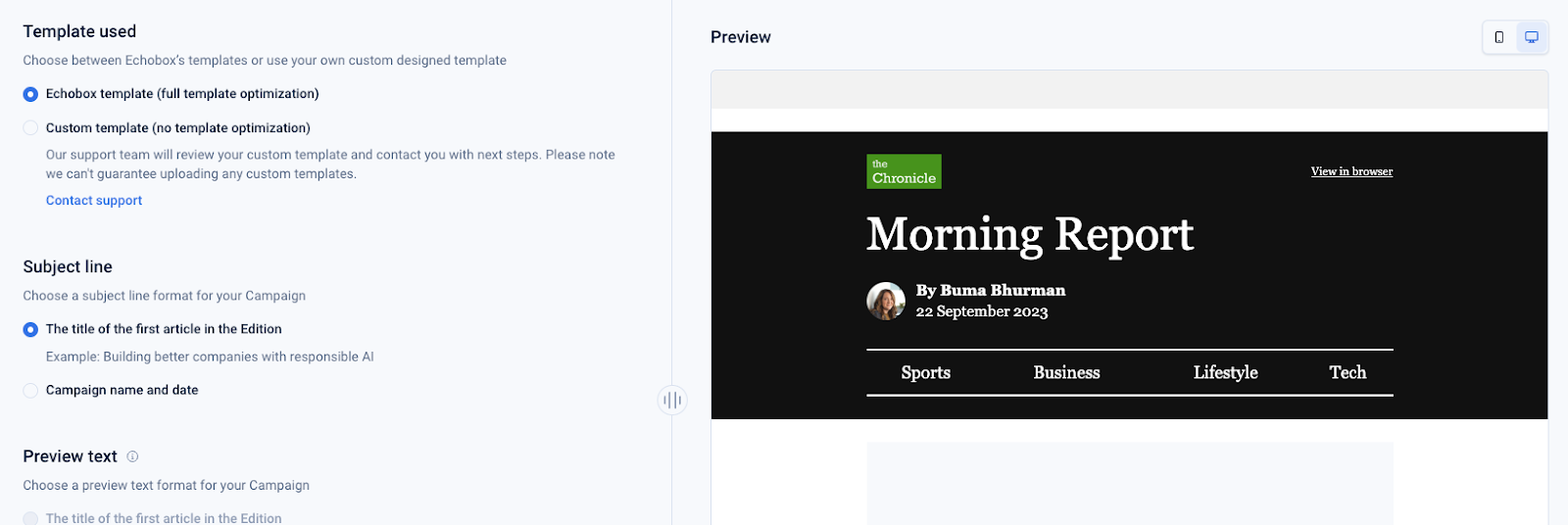
- Upload some core branding guidelines (header image, accent colour, fonts) and let the Echobox platform generate a template for you.
- Alternatively, edit the design yourself, or ask us to build a Custom Template for you.
Choose your automation & personalization settings
Echobox optimizes your newsletter performance through automation and personalization.
Automation
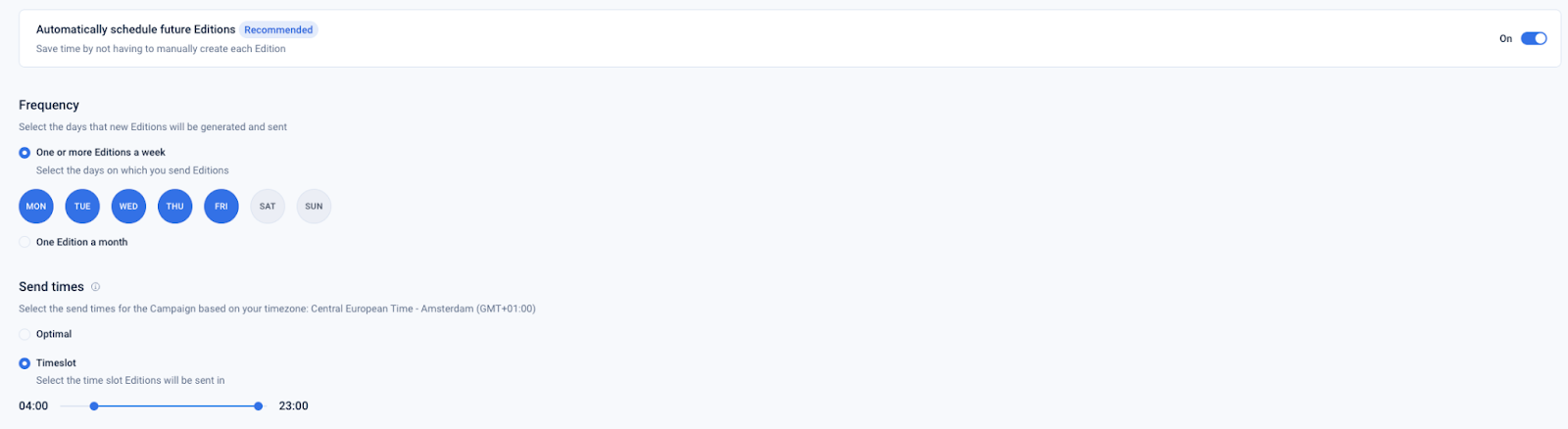
Navigate to Settings → Campaigns → Campaign Name → Automation to configure your automation settings.
- Automatically schedule future Editions - this will allow you to automatically curate and send Editions in accordance with your settings
- Frequency - specify the days on which you wish to send Editions
- Send times - specify a timeslot within which to send Editions or select ‘Optimal’ which will send the edition at the time each subscriber is most likely to open it
Personalization
Navigate to Settings → Campaigns → Campaign Name → Automation to configure your optimization settings.
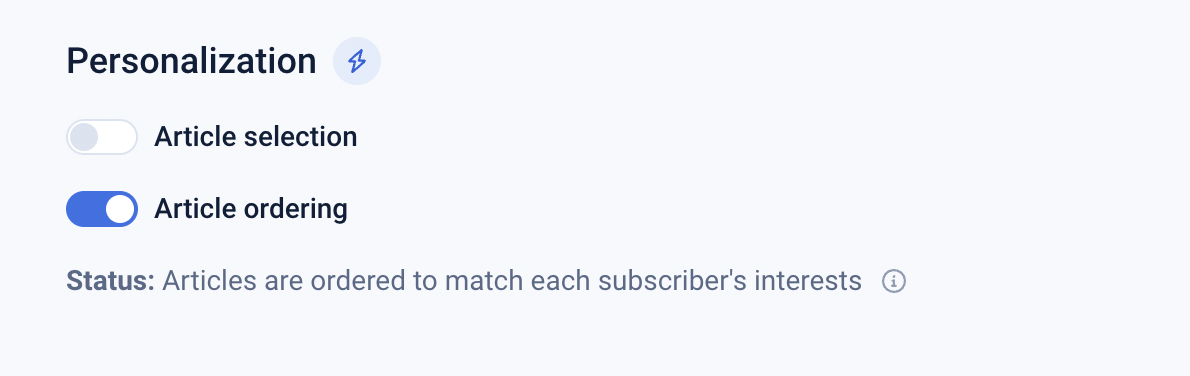
Under the Personalization section you can toggle on or off both of the personalization settings.
- Article selection - this will allow Echobox to select the articles in each Edition in accordance with each subscribers preferences
Article ordering - this will allow Echobox to order the articles in each Edition in accordance with each subscribers preferences.
Upload your audience
This step is applicable for those with an existing newsletter/subscriber base. If you are starting a Campaign from scratch, you just need some way of drawing in new subscribers. See here for all the ways that Echobox can help you grow your lists.
Once your template is in place, you just have to upload your existing newsletter audience. This can be done via CSV upload on the Dashboard.
If you want to draw in subscribers from another database, see here.
Curate and Send!
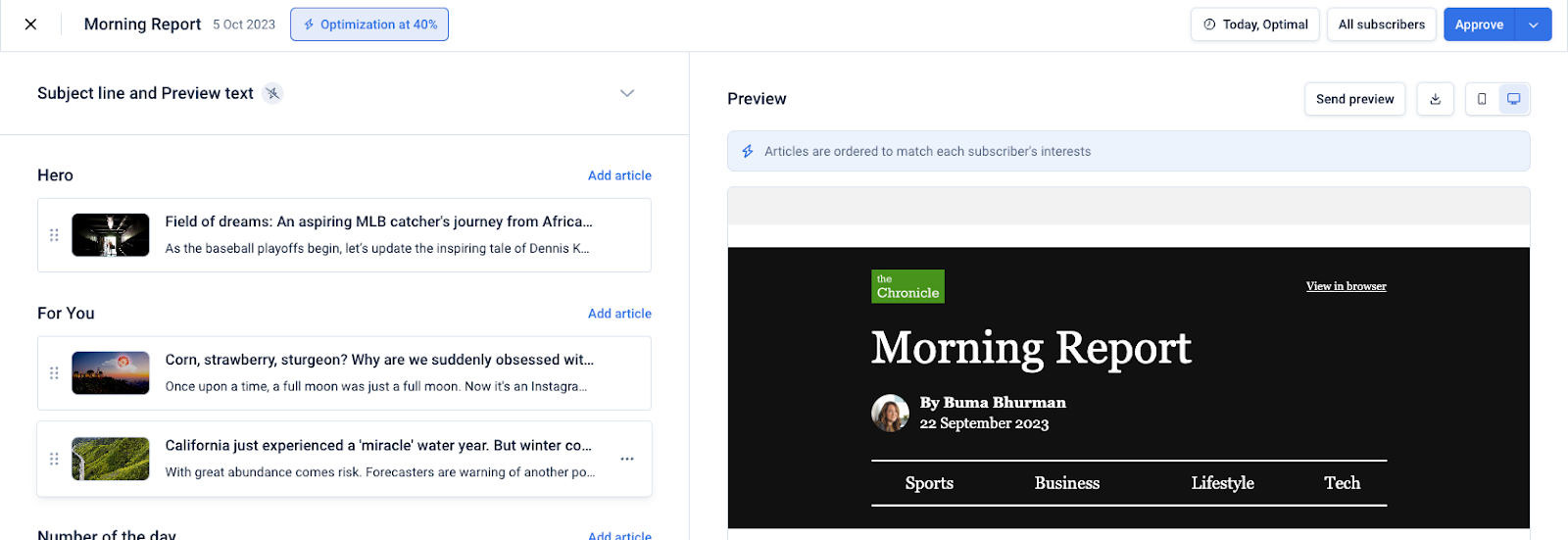
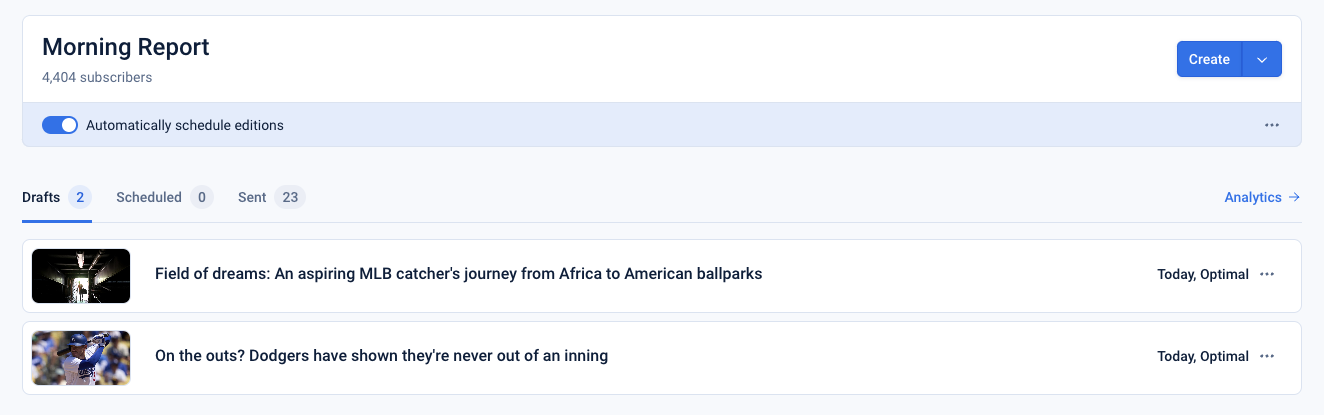
Once you’re ready to send, click “Create” on the Dashboard, and you will be taken to the Curate page, where you can edit your Edition.
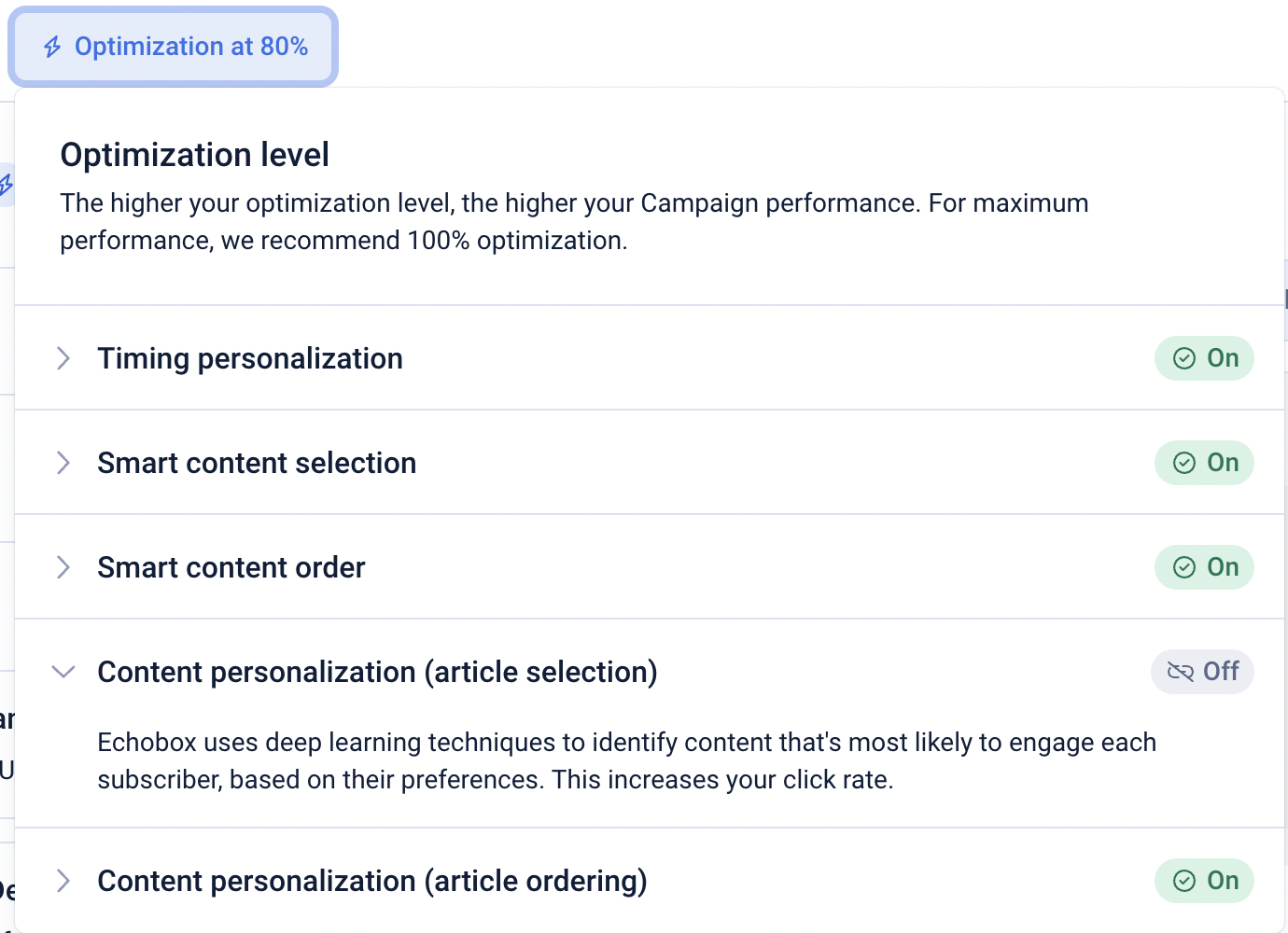
At the top of the Curate page you can open the Optimizations menu which will show you the automation and personalizations settings you have enabled to optimize your Campaign, with an explanation of each setting.
Allow Echobox to select the best articles for your subscribers or add your own. Reorder the articles if you wish using the drag and drop functionality.
Optionally, add an editorial note, set the send time and click ‘Approve’!