
How to manage segments
Saving default segments for a campaign
Overview
Segmentation allows you to organize your audience into groups based on attributes. You can then send different content to each segment. For example you may wish to,
- Send a different Edition to subscribers who have expressed interest in a certain topic
- Send more frequently to subscribers with specific attributes and who have a ‘Low’ engagement level to attempt to re-engage them
- Send an offer or an upsell to subscribers with specific attributes and who have a ‘High’ engagement level as they are engaging frequently with your content
Segmentation combines powerfully with custom subscriber fields, which allows you to capture and store a rich data profile for your subscribers, which you can use for granular segmentation. See ‘How to work with custom subscriber data’ for more information.
Custom field data
Segmentation is possible without storing custom field data for your subscribers in Echobox, however the data available to segment upon is limited.
You may wish to visit this article ‘How to work with custom subscriber data’ to get custom data into Echobox before considering segmentation.
Creating a segment
To view your existing segments and create new segments navigate to the ‘Segments’ on the Subscriber Management page.
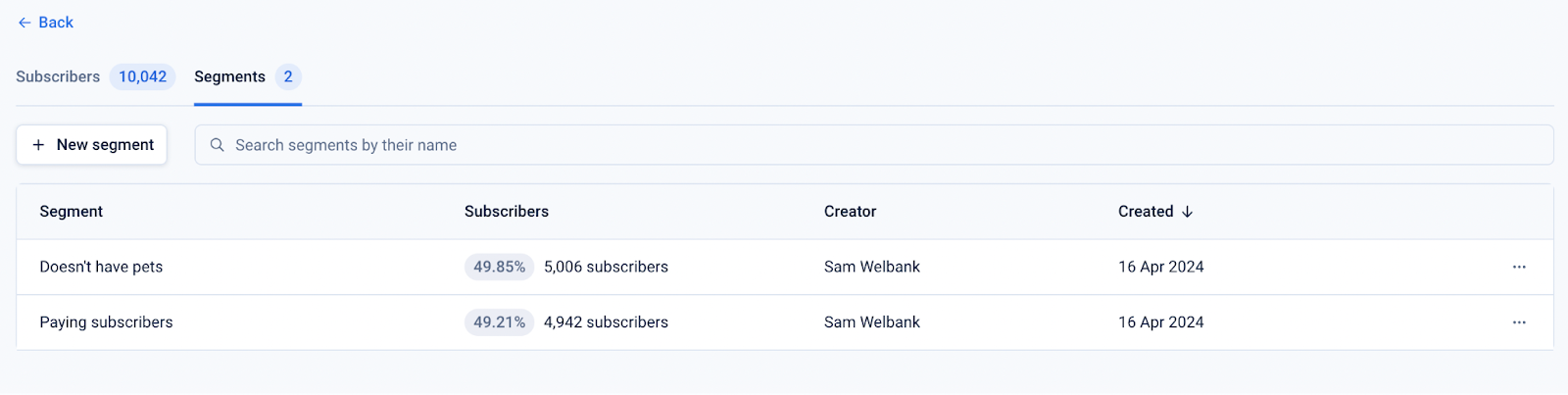
Here you can see the existing segments you have created, and the count and percentage of subscribers within each segment.
To create a segment click ‘New segment’. Here you can add a segment name and open the dropdown to select the first field which you wish to use to segment your audience.
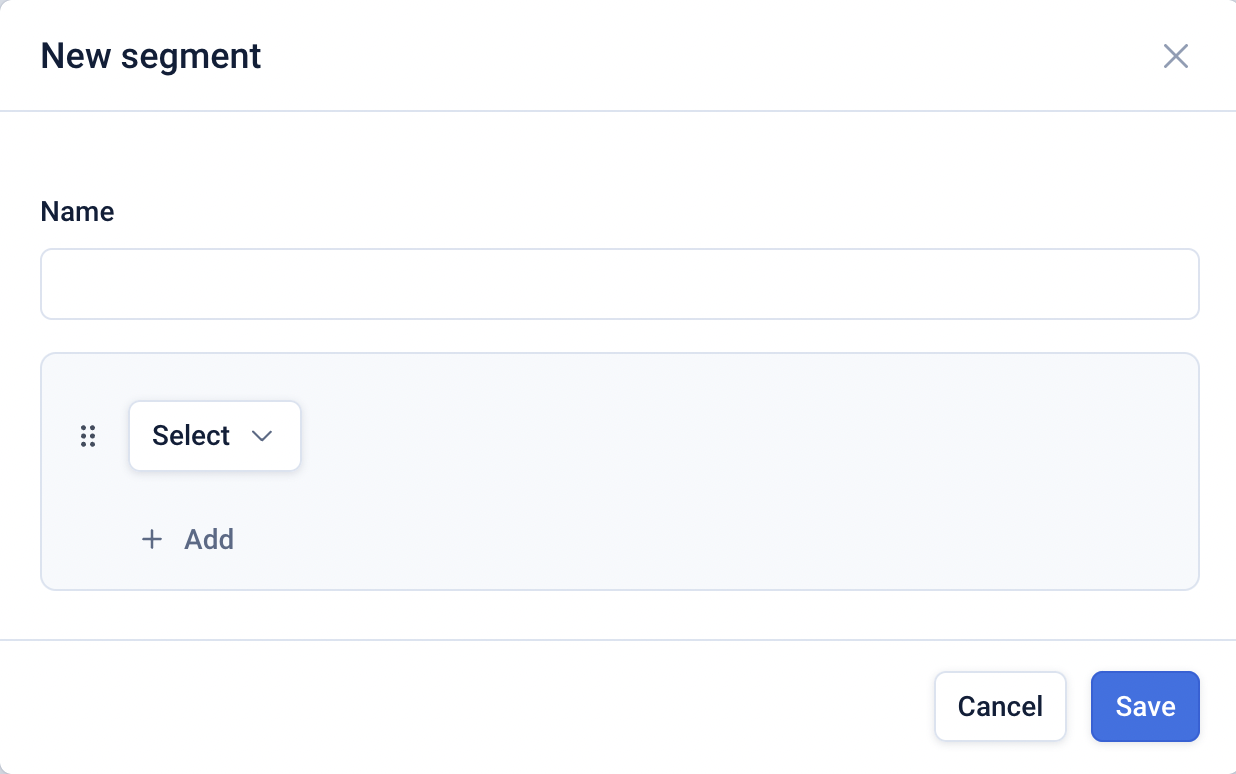
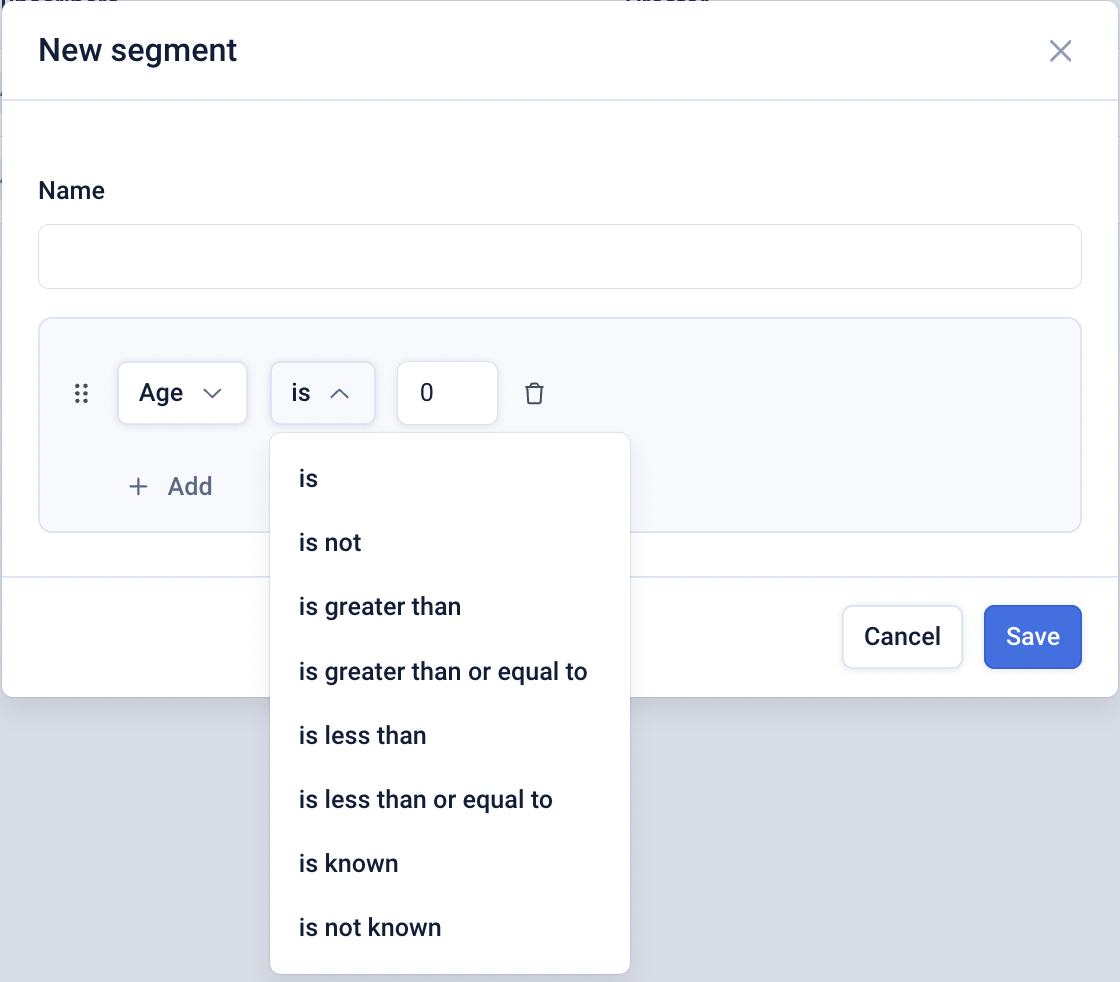
After selecting a field you will be able to select the appropriate operator and the value.
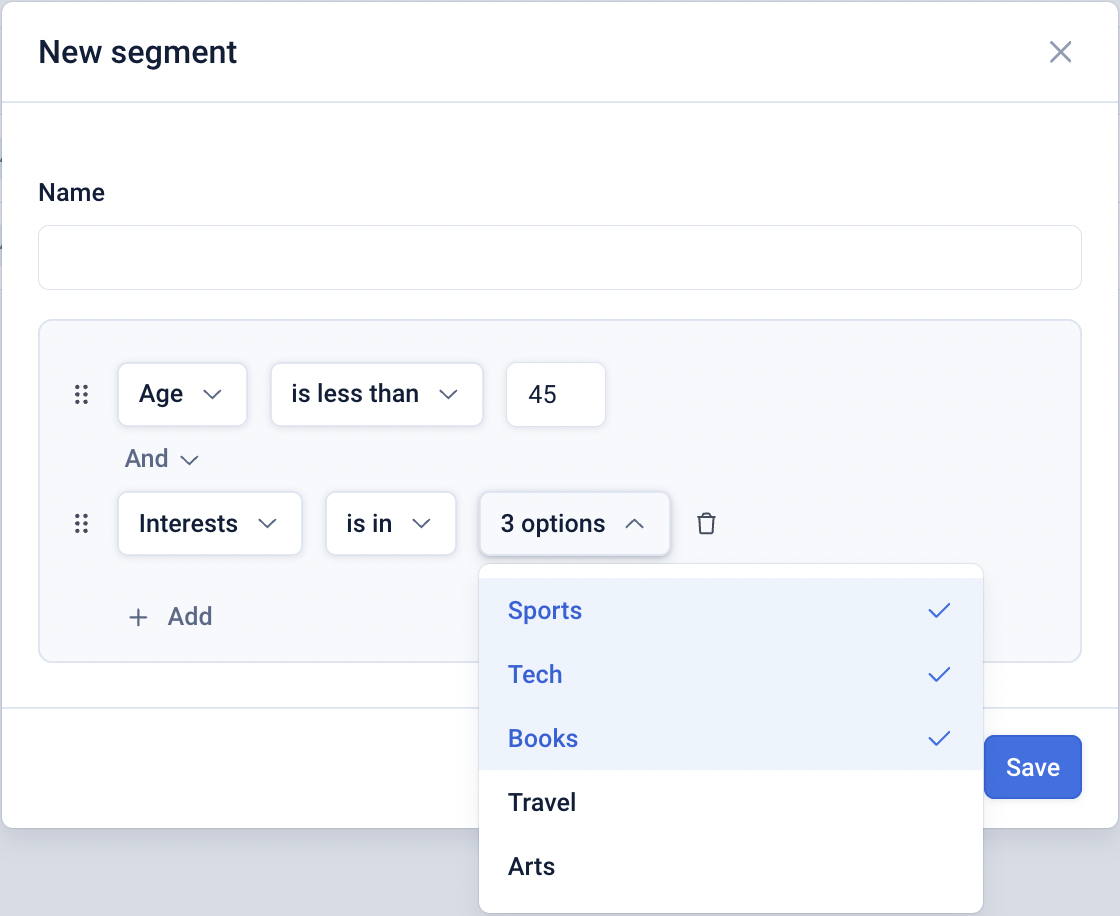
You can flexibly combine the criteria using ‘AND’ and ‘OR’ statements to group your subscribers.
Updating a segment
You can edit and delete a segment by clicking the 3-dot menu on a segment.
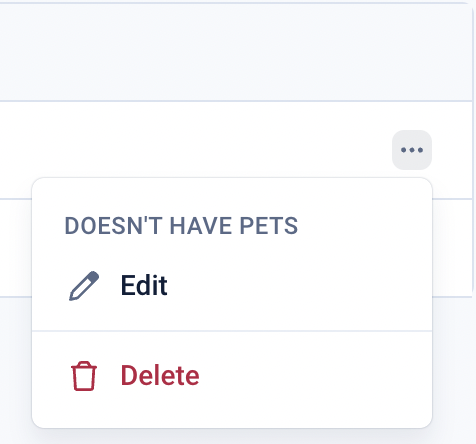
Clicking ‘Edit’ will allow you to make changes to the segment criteria.
Sending to a segment
After creating an Edition you will see the settings below in the top right corner.

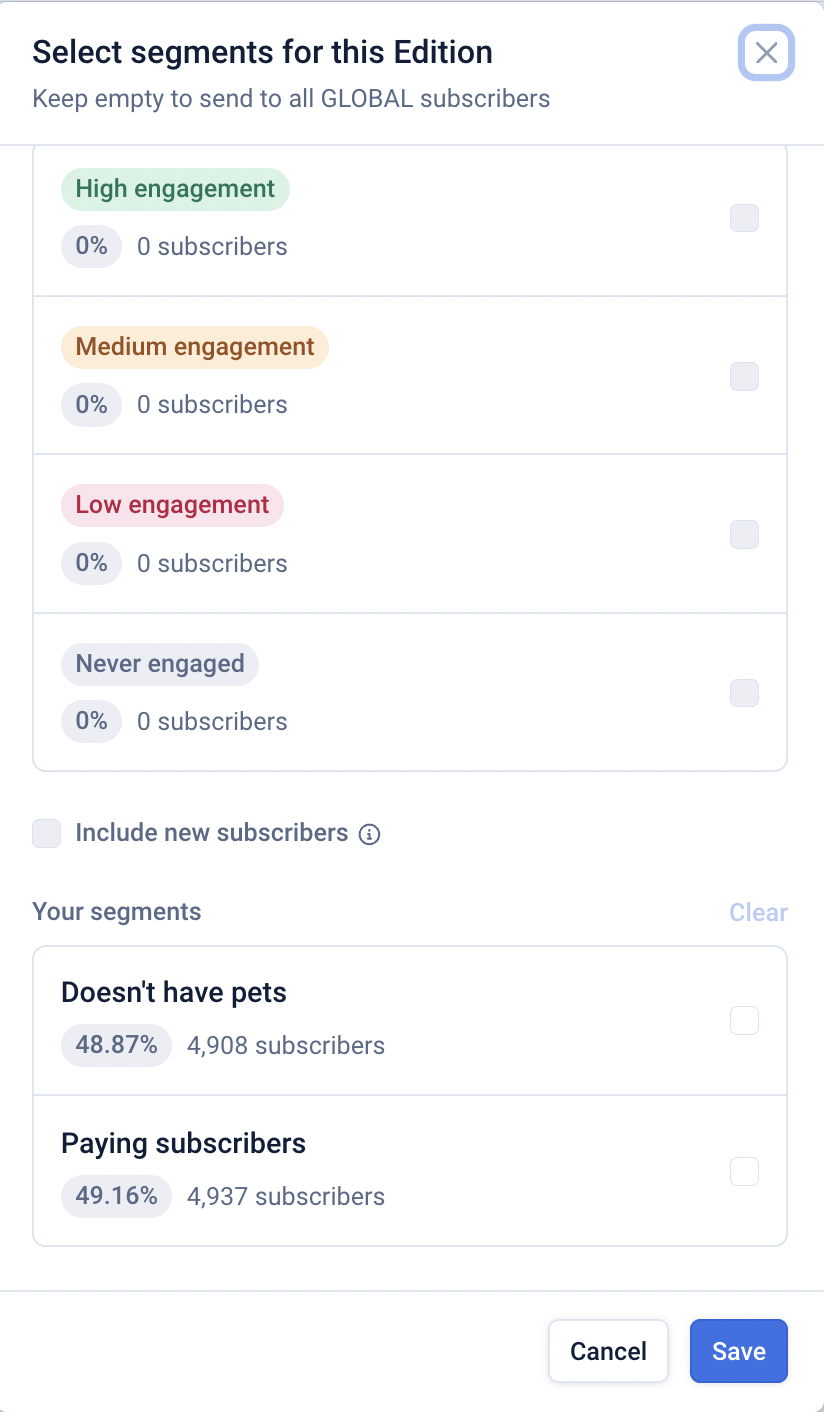
By clicking on ‘All subscribers’, you can select one or more segments to send the Edition to. The top segments refer to engagement-based segments, whilst the ‘Your segments’ section refers to segments you have defined.
Saving default segments for a campaign
You can save default segments for a campaign on the Automation settings page. Echobox will remember these preferences for Editions that are manually approved and for Editions that are sent automatically.
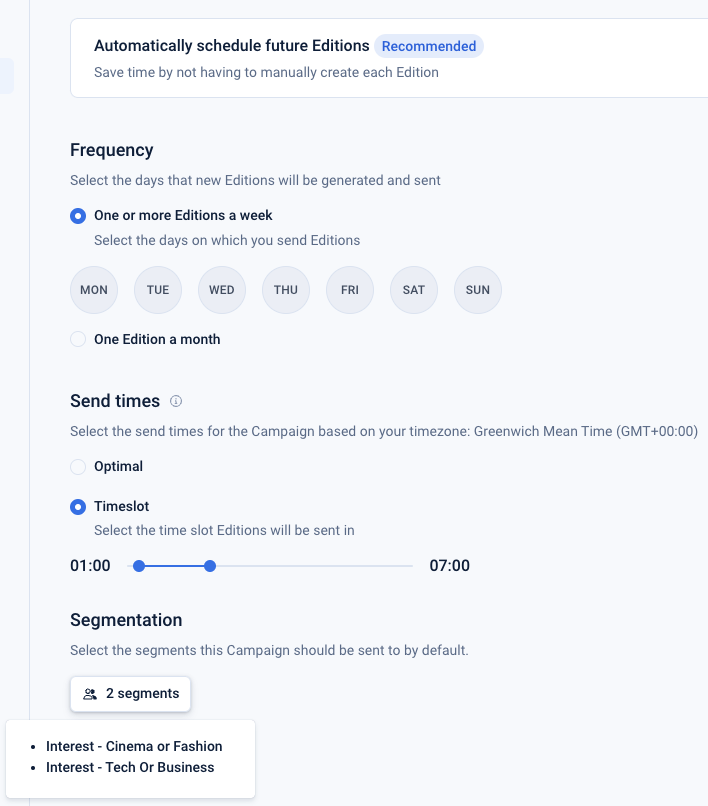
You can override the saved defaults on a per edition basis using the segment selector.
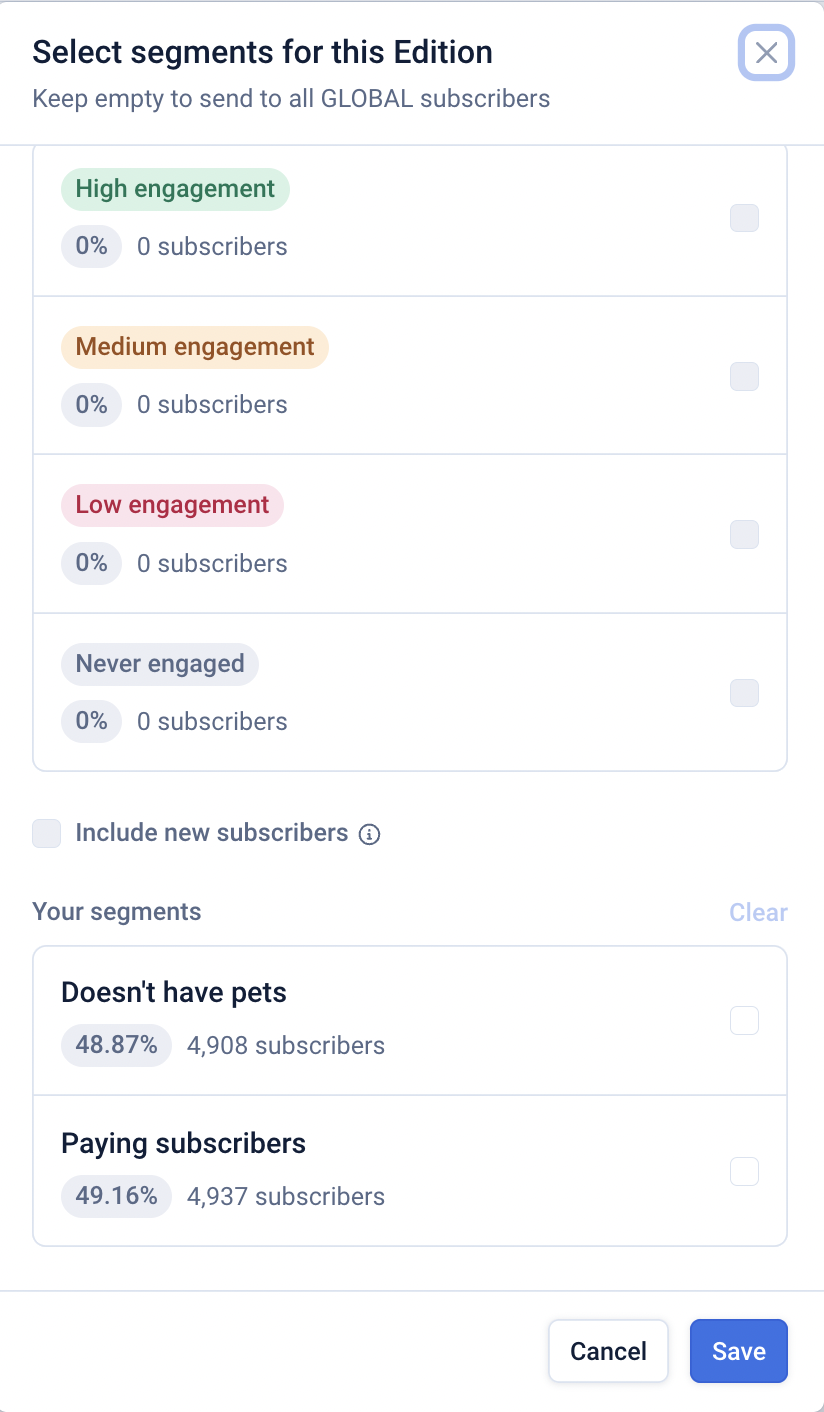
This feature can be used exclude subscribers with low engagement or to target specific custom segments. It can also be used in conjunction with new campaigns, allowing you to use different content or send time strategies for different segments.