
How to work with custom subscriber field data
Uploading a subscriber list with custom field data
Updating custom field data manually
Capturing custom field data from your subscribers
Overview
Custom subscriber fields enable you to store a rich profile of data for your subscribers in Echobox, which can be used in segmentation.
This article will cover how to,
- Define your list of custom fields
- Upload a subscriber list with custom fields
- Update custom field values manually
Custom fields are stored at the property level rather than on a per-campaign basis.
Please see our ‘How to integrate custom subscriber data ’ which explains how to set up integrations to allow you to synchronize custom field data from other systems with Echobox.
Defining your custom fields
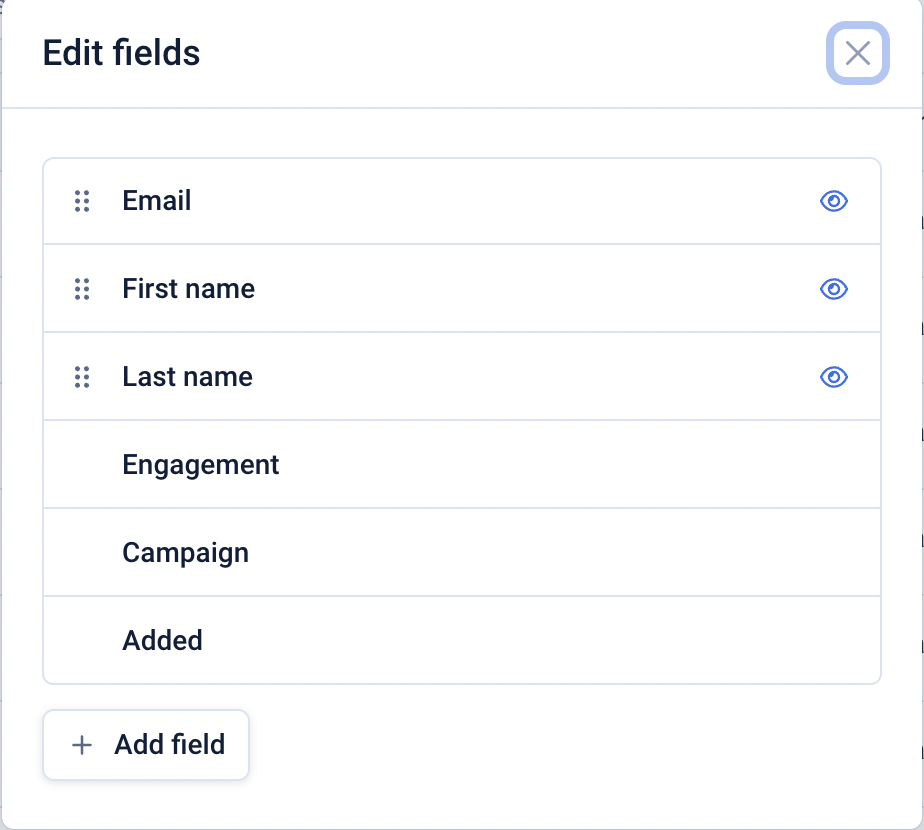
To set up your subscriber list to store custom field data navigate to the subscriber management page and click ‘Edit fields’.
On this modal, you can see the default fields stored by Echobox. By toggling the eye icon, you can set the field to visible or hidden. You can also reorder the fields using the drag handle on the left.
Click ‘Add field’ to add additional custom fields. Provide a name for the field and select the data type.
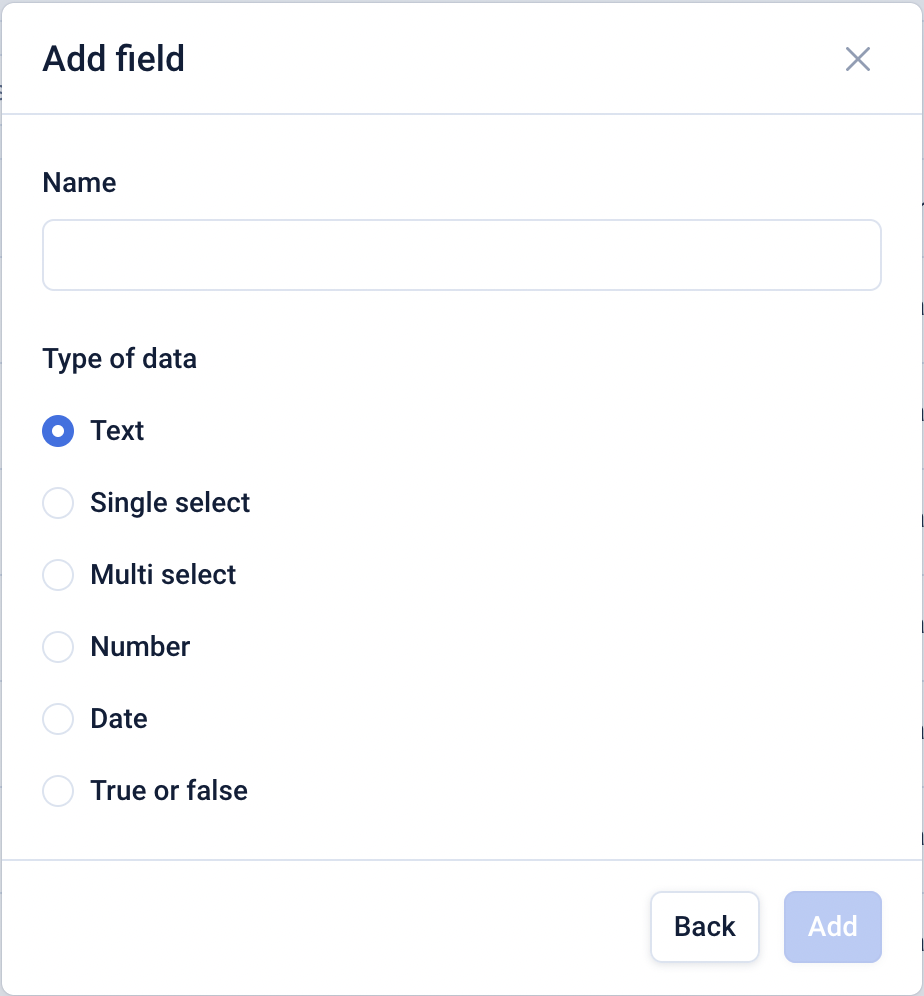
For fields of type ‘Single select’ and ‘Multi select’ you will need to add the options you wish to permit by entering each option in the input field and clicking ‘Add’.
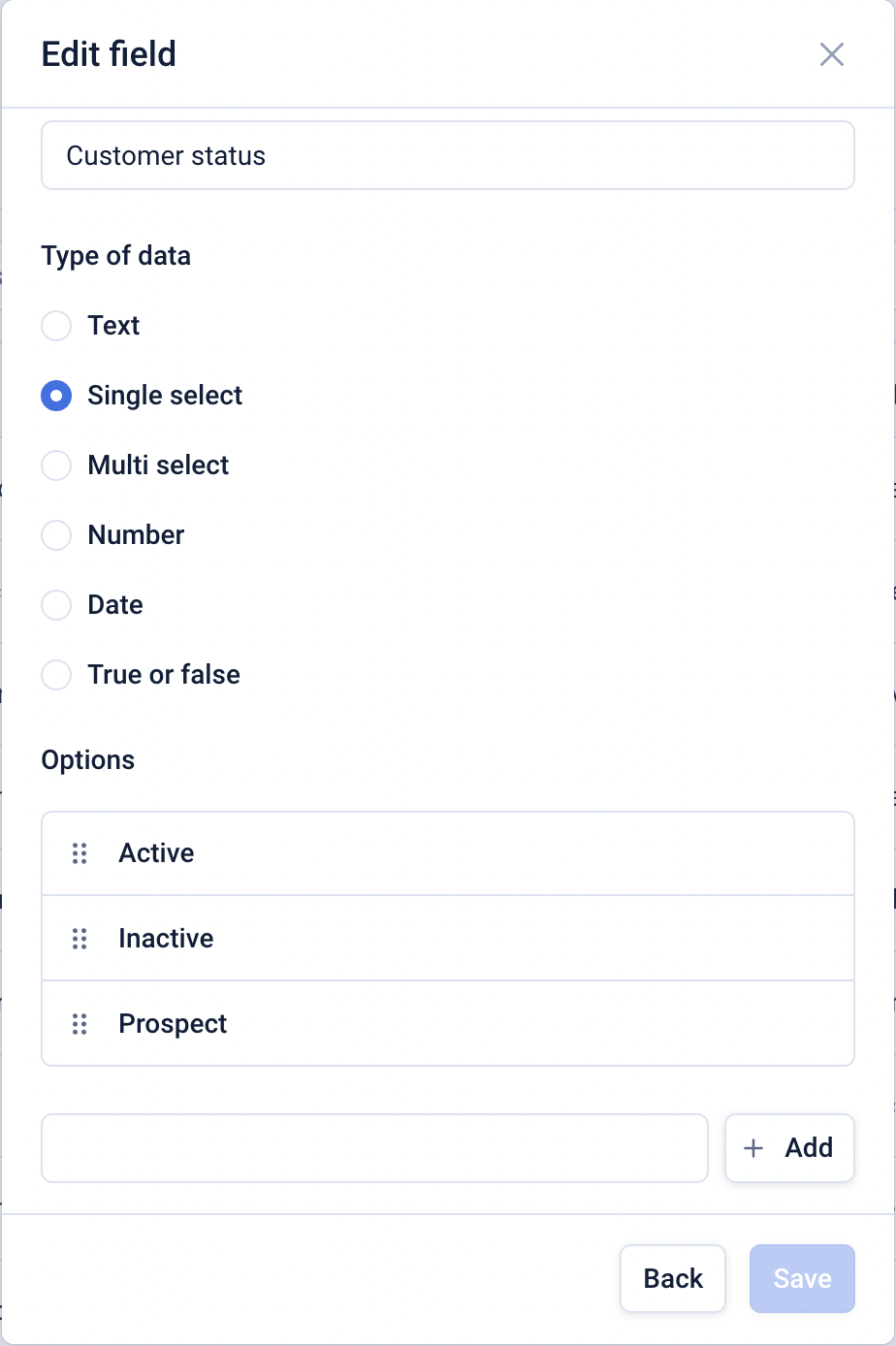
You can edit a field by hovering on a field in the ‘Edit fields’ modal and clicking ‘Edit’. This will allow you to edit the field name and the data type.
Changing the data type will delete any existing values for that field, and may also invalidate any segments that are using that field.
Uploading a subscriber list with custom field data
Once you have defined your custom subscriber fields, you can upload subscriber data via CSV.
To do so click ‘Add’ and click on the ‘Upload subscribers’ tab.
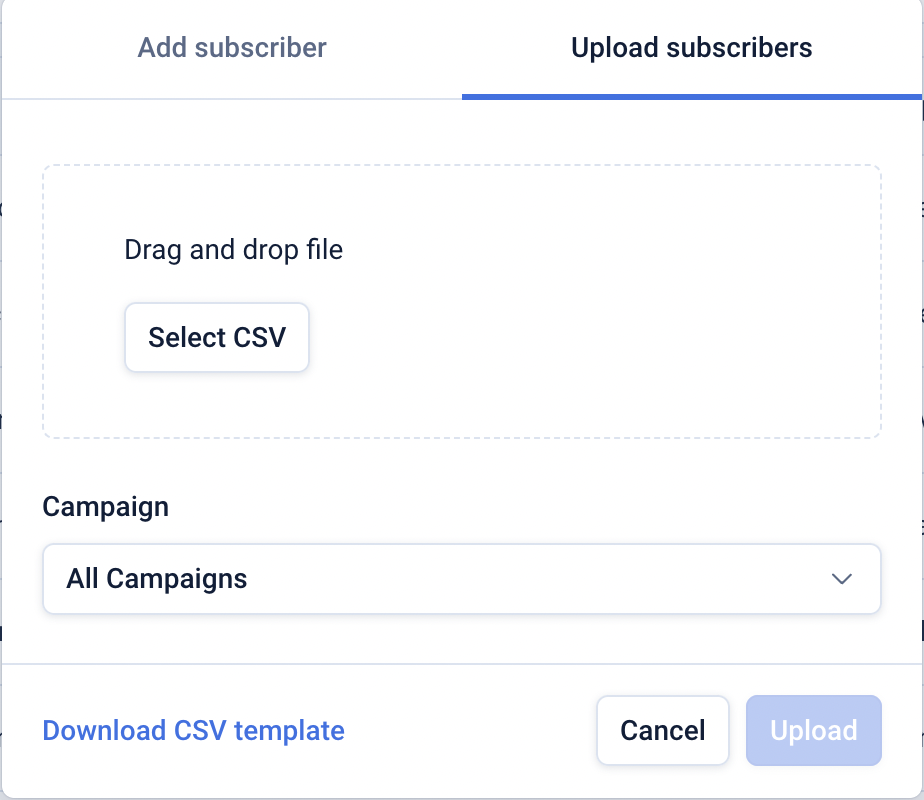
Click ‘Download CSV template’ to download a templated file with the field names you’ve added. You can use this to ensure your column headers are correct and that the data will be successfully uploaded.
To upload your subscribers,
- Select your CSV file
- Select the campaigns you wish to subscribe them to
- Check the consent box
- Click ‘Upload’
To ensure the data uploaded is correct, any data that does not adhere to the data type of the column will block the upload and display an error message on the modal.
Updating custom field data manually
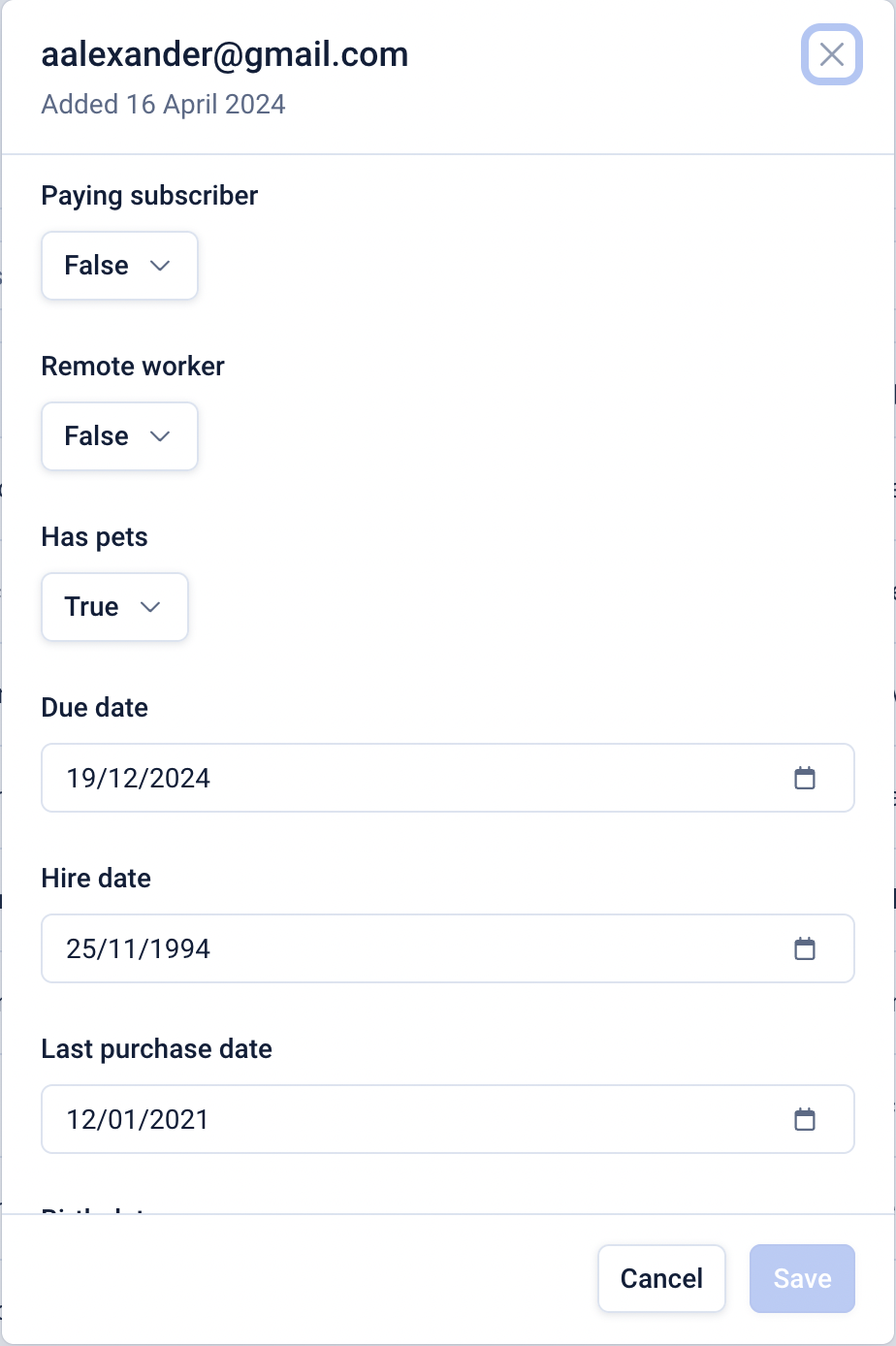
Once you have got some custom subscriber data into Echobox you can update the values for individual subscribers by clicking on the 3-dot menu on the right-hand side of the table.
This will open a modal for the selected subscriber where you can update a field value.
Capturing custom field data from your subscribers
A common use case to capture additional data about your subscribers is to request it directly from your subscribers. This could be via,
- A sign-up form
- An accounts page
- A survey
Our 'How to integrate custom subscriber data ' document covers the API support Echobox provides to allow websites to create, update, delete and get custom field data.