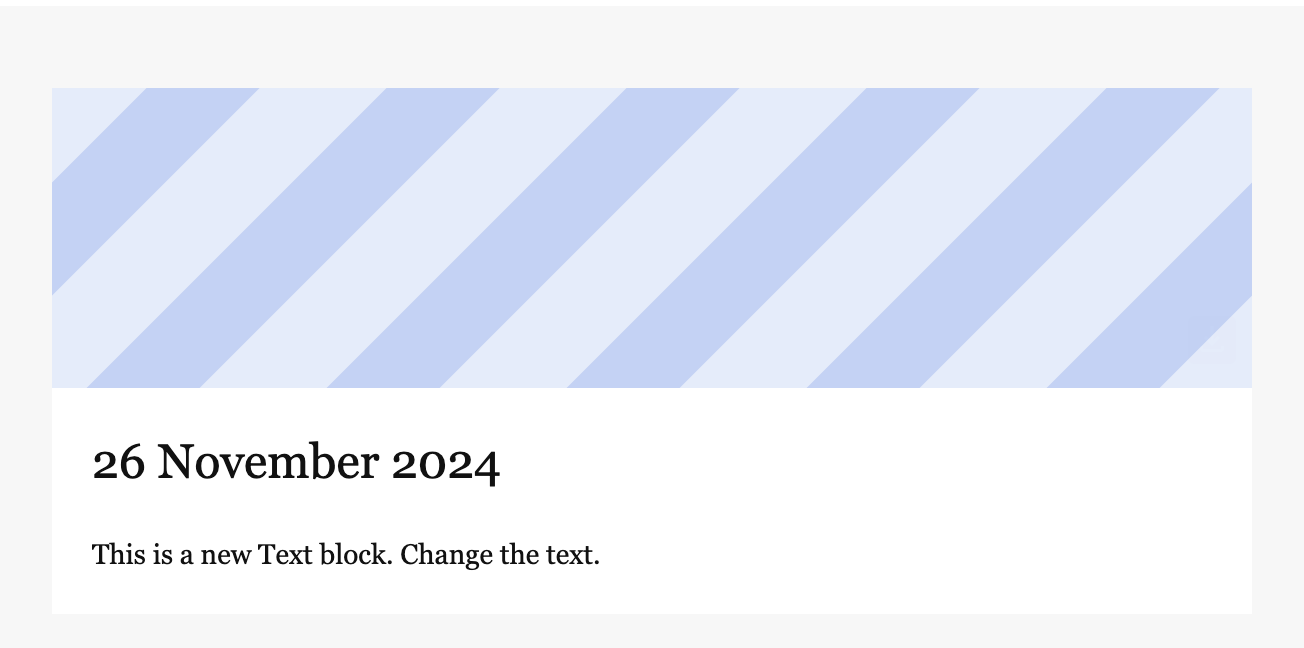
How to add the date to your newsletter
Adding the date variable to a newsletter
Adding the date variable to a marketing template
Overview
Adding the date to your newsletter edition allows your readers to quickly understand when your newsletter was sent and assures your readers that your content is current and up to date.
This guide will explain how to add a formatted date variable to your newsletter that will render out the date for each newsletter edition.
Configuring your date format
To configure your date format navigate to Settings > Campaigns > Campaign Name > Branding > General Styling and click on ‘Date format’.
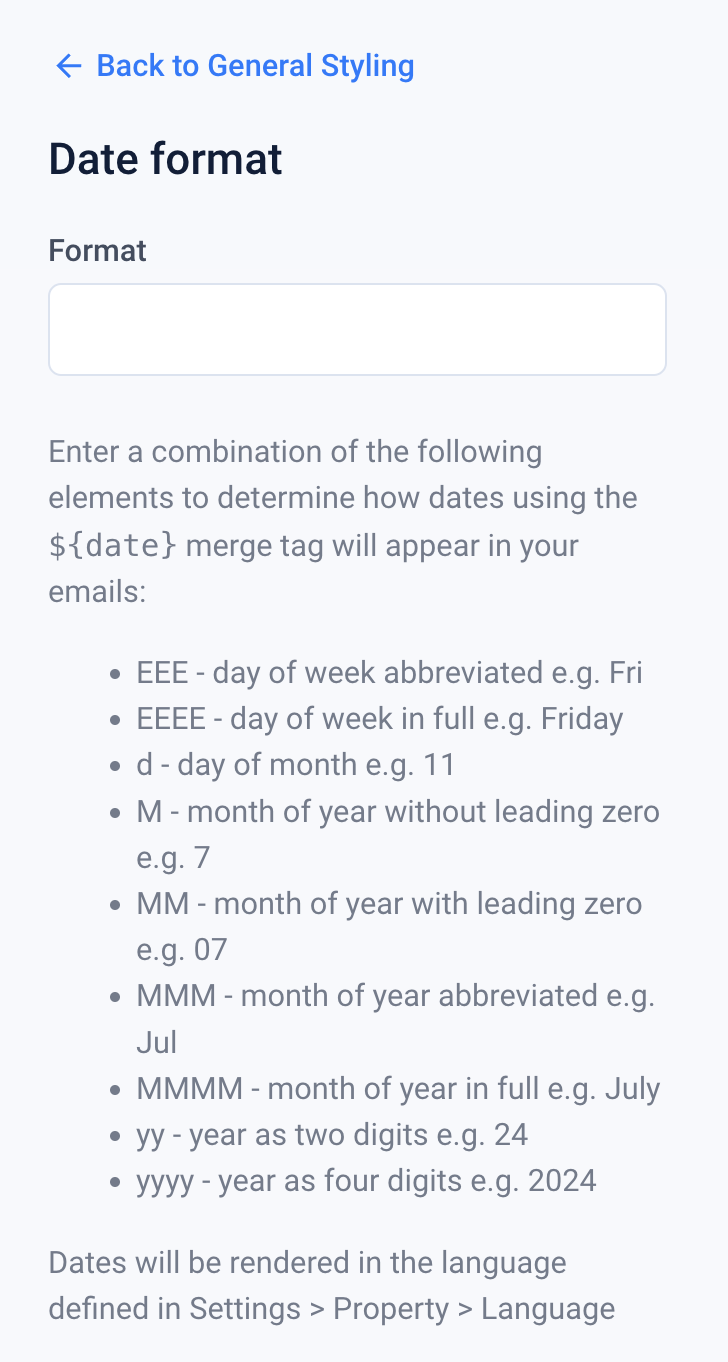
Enter your desired date format in the input. For example, to render ‘Tuesday 26 November 2024’ enter ‘EEEE dd MMMM yyyy’.
The date format can be specified per campaign and will be rendered in the language of the property which can be found by navigation to Settings > Property > Language.
Adding the date variable to a newsletter
To display the date in your newsletter navigate to Settings > Campaigns > Campaign Name > Content, select the ‘Header’ tab and then select ‘Custom’.
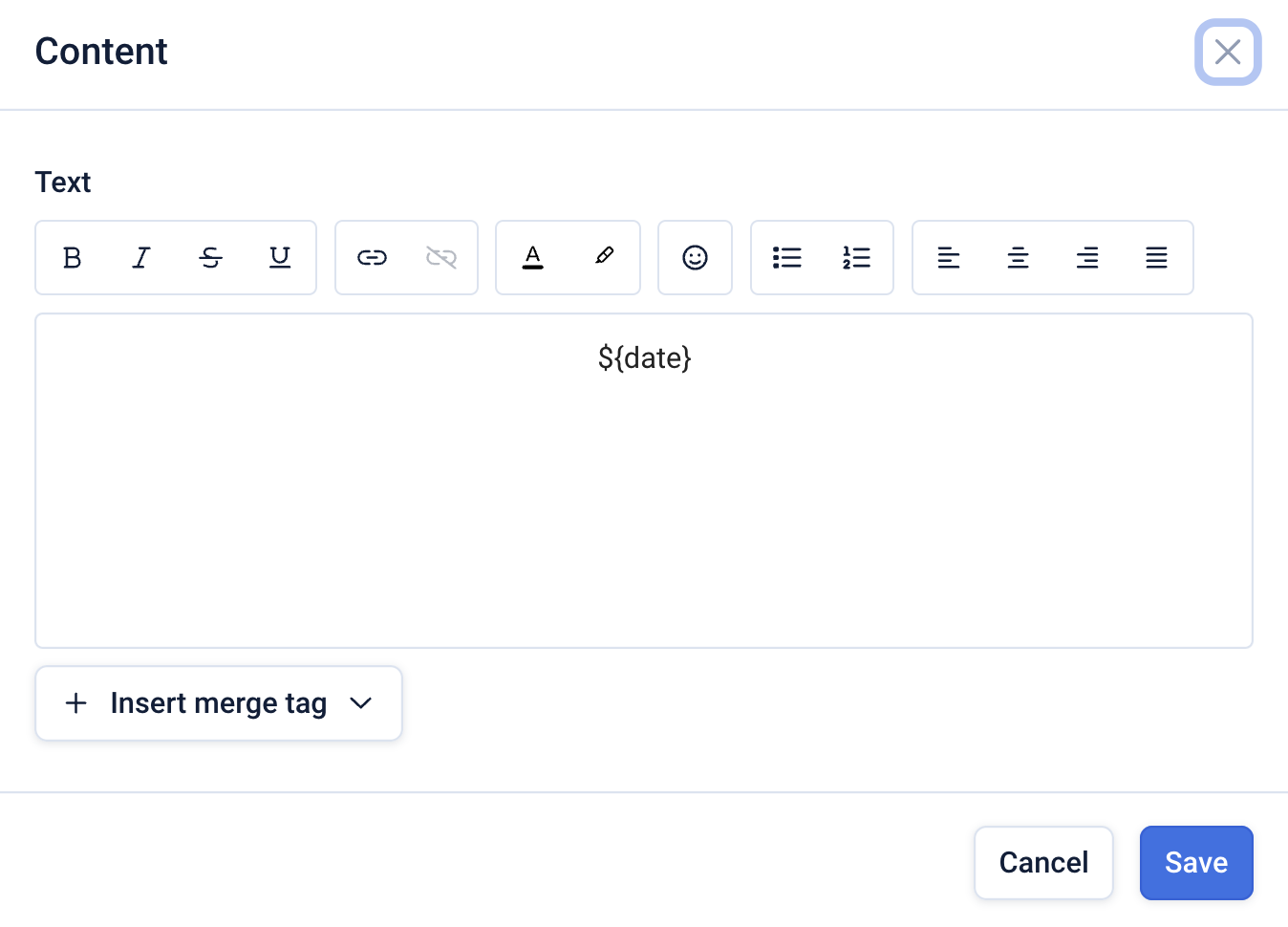
Add a ‘Text’ block, expand the ‘+ Insert merge tag’ menu and click on ‘Date’.
Format the text colour and alignment as you wish and click ‘Save’.
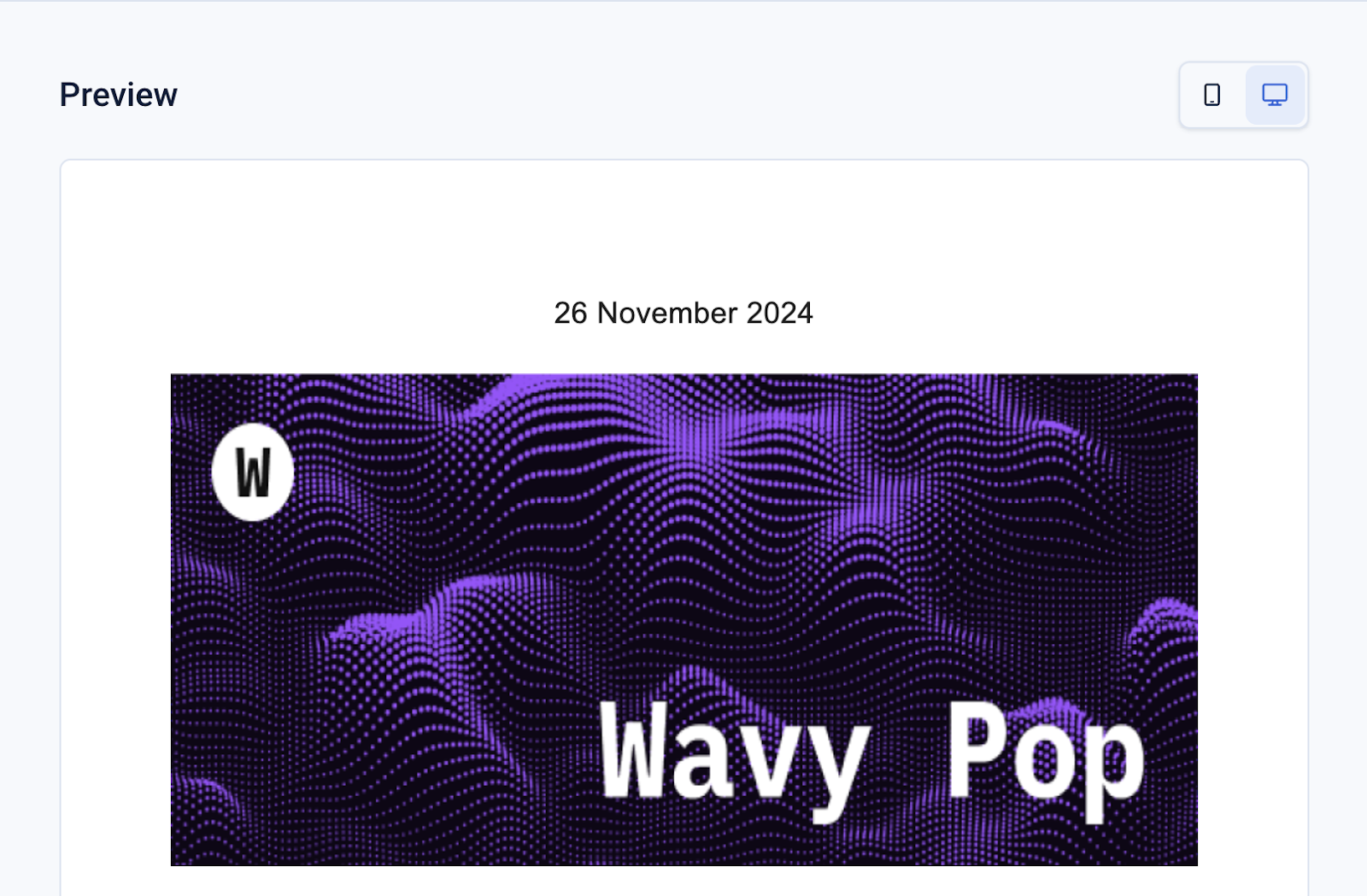
You should now see the date rendered in the preview in the desired format.
Click on the 3-dot menu for the ‘Text’ block and select ‘Design’ to modify the background colour, text colour, fonts and other options.
Adding the date variable to a marketing template
To add the date to a marketing template navigate to the template management area by clicking the templates icon in the top navigation bar.
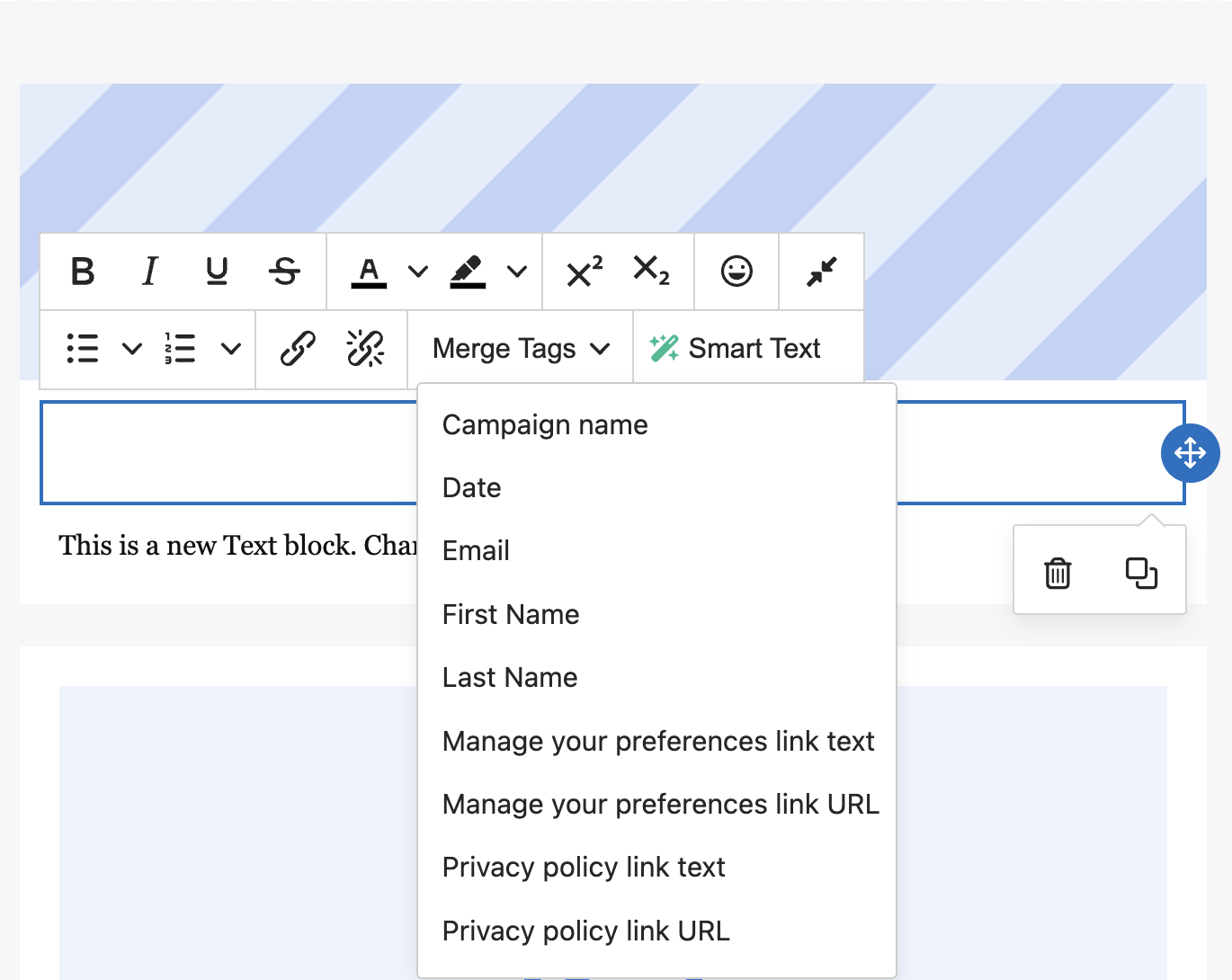
Add or edit a ‘Text’ content block, open the ‘Merge Tags’ menu and click ‘Date’.
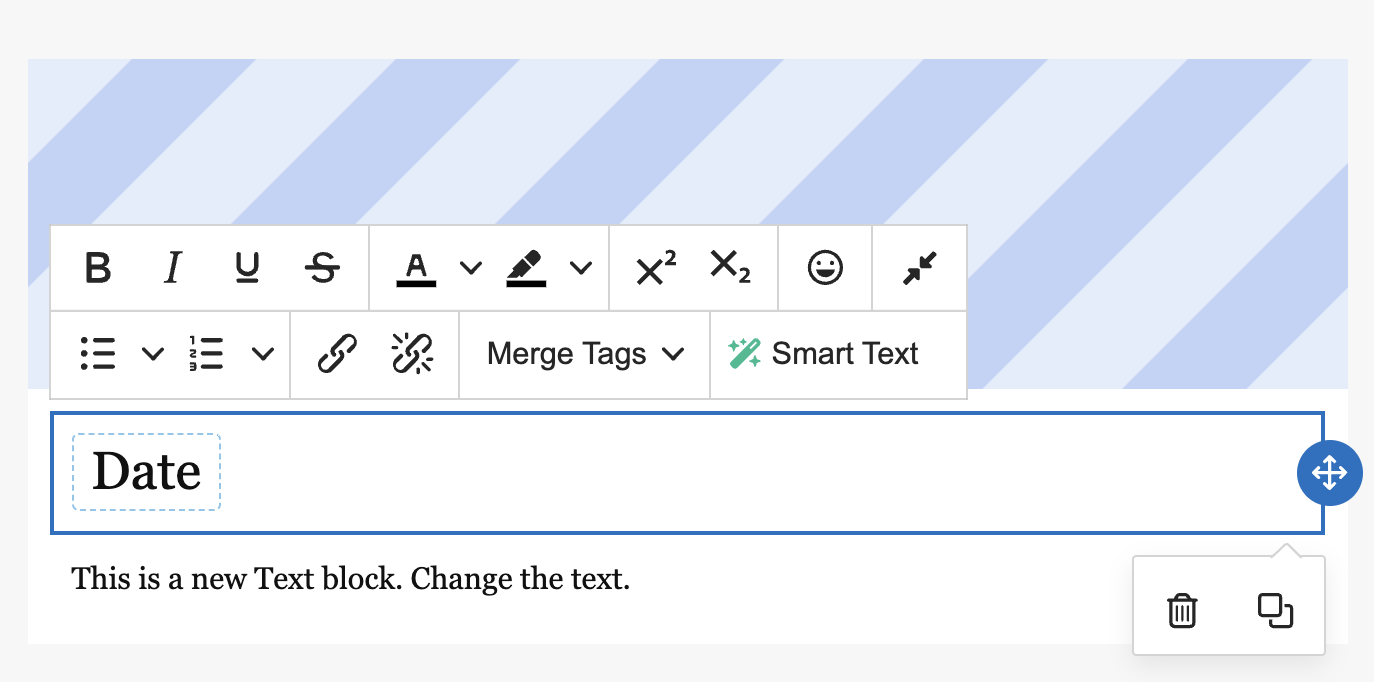
Note that when you are creating an email from a marketing template the date will not render out automatically in the preview - however it will be visible once the email is sent out to its recipients.
You can test this by clicking the ‘Send preview’ button.