
How to configure webhooks for your Echobox campaign
Overview
A webhook is a way for different data platforms to communicate with each other automatically.
When you create a webhook, you tell one platform to automatically send a message to another platform whenever a certain event happens. For example, if you run an online store, you can set up a webhook so that every time someone buys something from your store, your accounting software automatically records the sale.
Echobox customers can use webhooks to automatically send messages from Echobox to a destination URL when the following events occur: subscribe, unsubscribe, hard bounce, complaint.
This can be used to:
- Synchronize subscribers with CRMs or CDPs
- Action certain events in other systems such as marketing platforms
- Keep a record of hard bounces or complaints
Webhooks refer to outbound messages sent from Echobox to external platforms. To push data into Echobox, please refer to the various API endpoints which are documented here: https://docs.echobox.com/reference/getting-started-email
Setting up your webhook
Webhooks can be set up for each campaign and each webhook supports only one event type.
To set up a webhook navigate to the settings for your campaign and click ‘Webhooks & Integrations’.
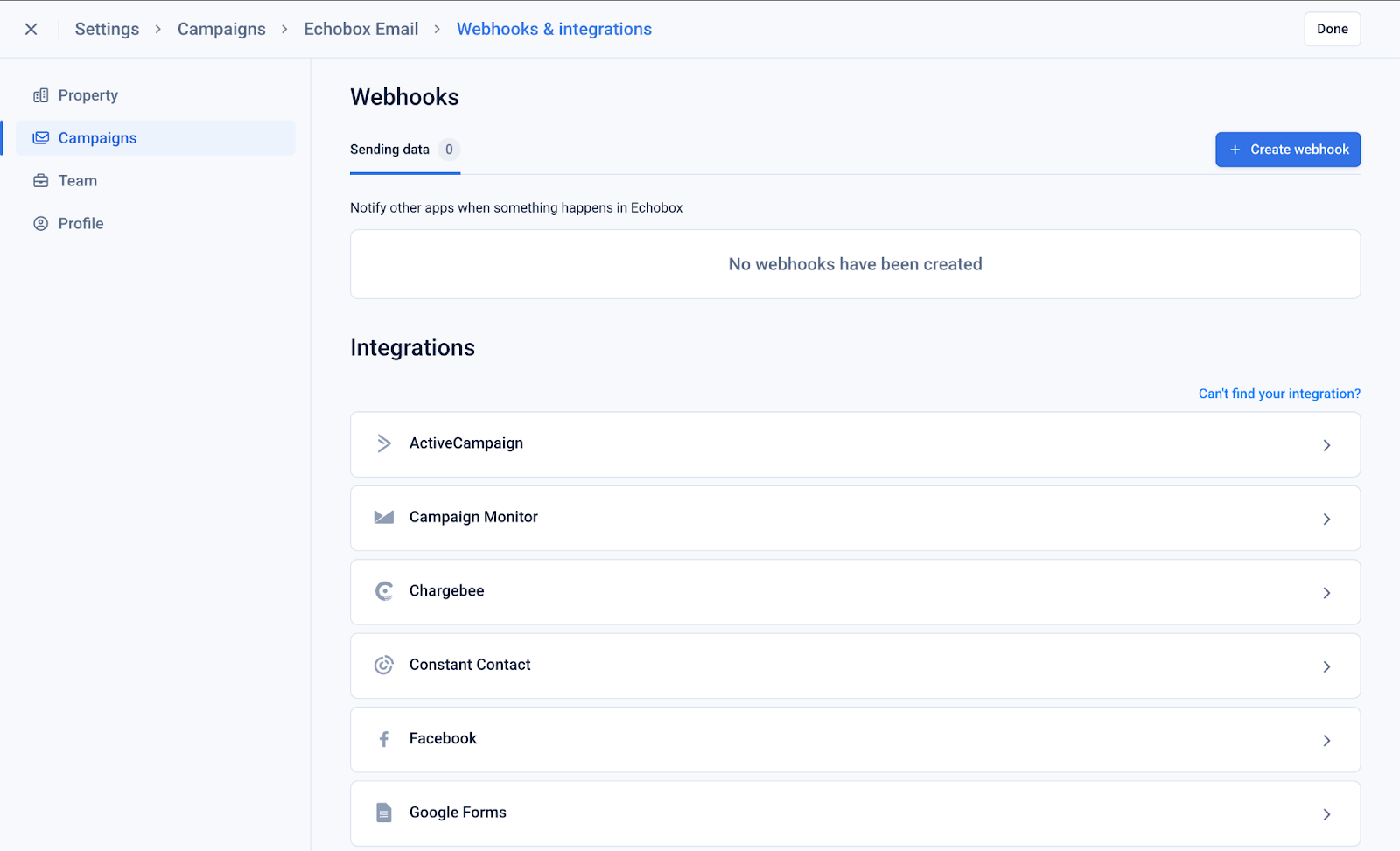
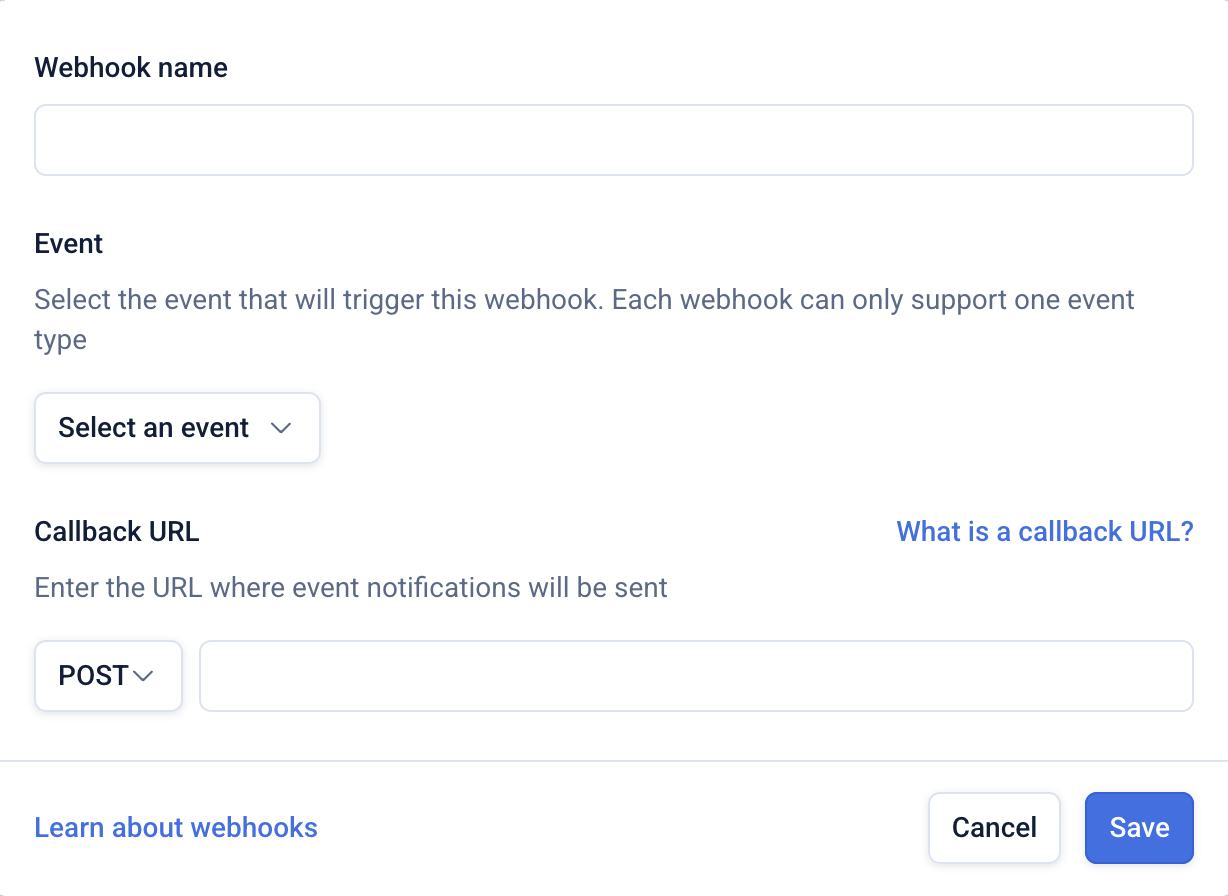
Click ‘Create webhook’ and enter a webhook name which must be unique per campaign.
Select the event for which you want the webhook to be triggered. You can select from the following events: subscribe, unsubscribe, hard bounce or spam.
Choose between a POST or PUT method and enter a callback URL, and click ‘Save’.
What is a callback URL?
A callback URL is a specific endpoint provided by your application that will receive the message from Echobox when the event occurs. This is the destination where Echobox will send the message for the event.
Once set up, we will send a request to your webhook with the following body:
These webhooks can be configured for the following events:
- New subscriber
- Unsubscribe
- Open
- Click
- Hard bounce
- Complaint
Echobox will set the request’s ‘User-Agent’ header to the follow for any request we make.
http://www.echobox.comEnabling your webhook
Once your webhook is created it will be displayed in the UI.
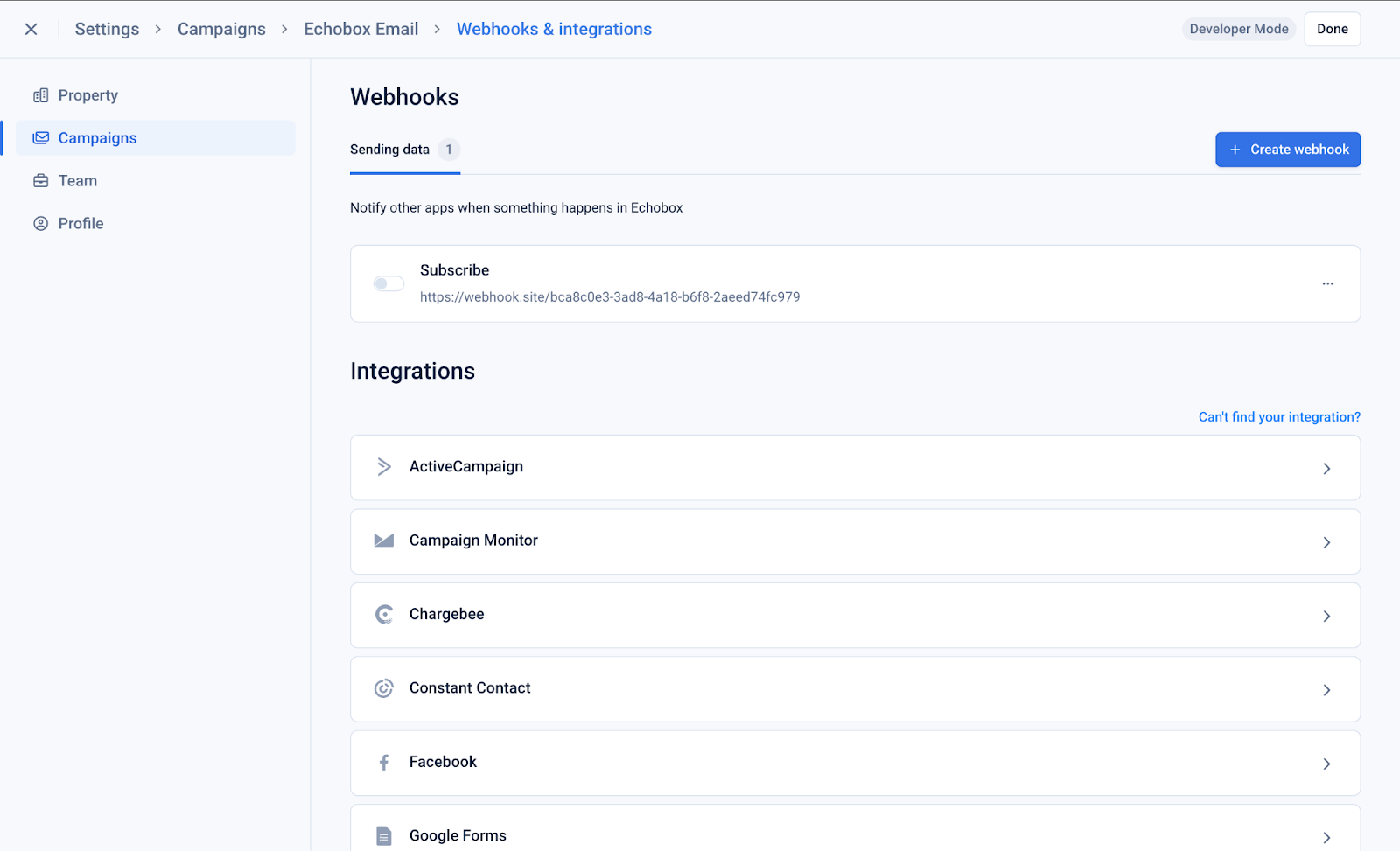
To enable it, switch the toggle to active.
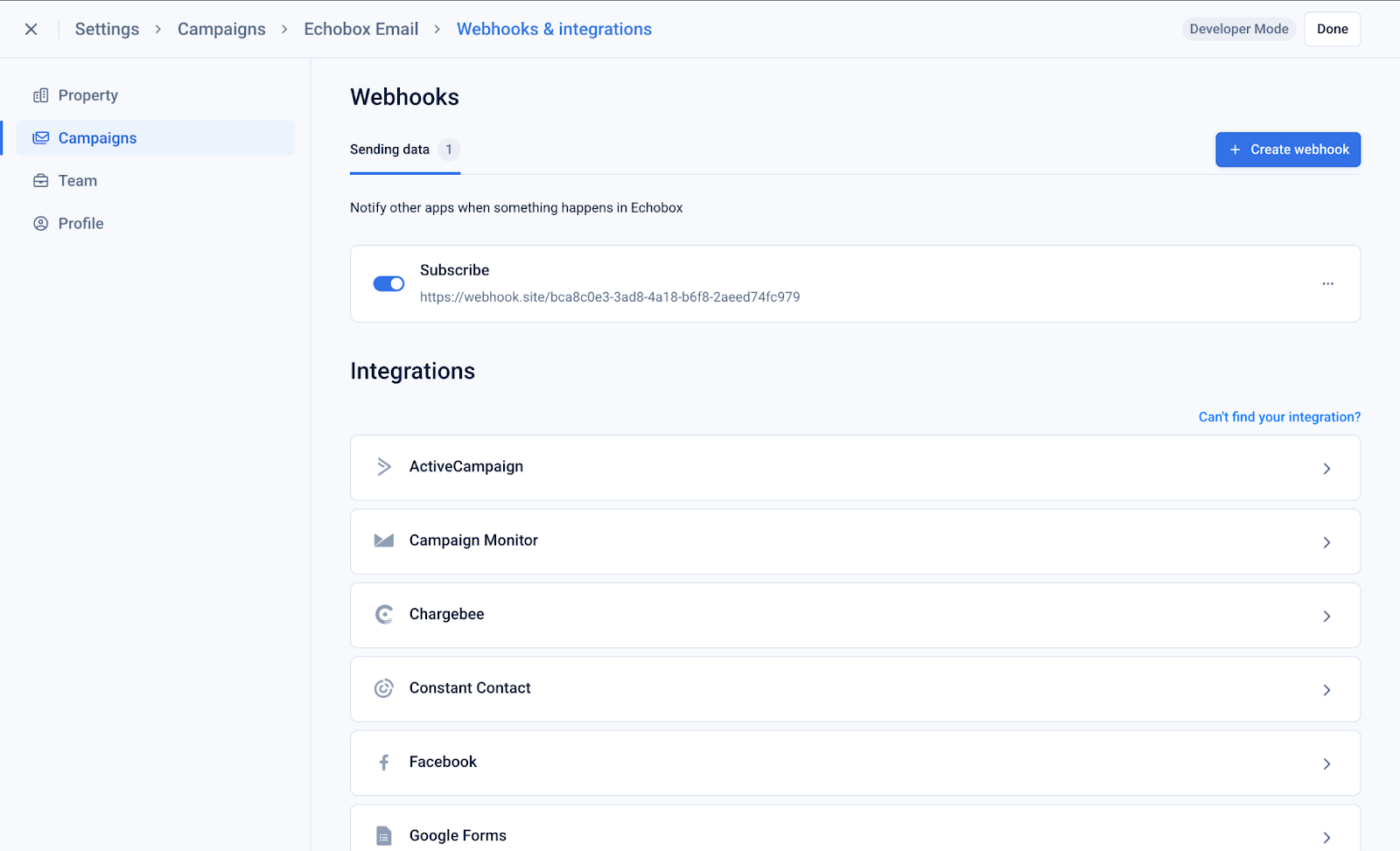
Your webhook will now start sending events.
Testing your webhook
You can test your webhook by simulating a real event, such as by subscribing to the campaign via sign-up form.
Note that in-platform events, such as manually adding or uploading subscribers will not trigger the webhook.