
Getting Subscribers into Echobox
Introduction
There are lots of different ways to get your subscribers into Echobox. These fall into three main categories:
- Echobox-provided forms
- Hosted subscription form
- Embedded form
- Integrations
- Use your own form
- Syncing subscribers from another platform (Webhooks)
- Manual additions
- Upload CSV
- Add one-by-one
Echobox-provided forms
Hosted Subscription Page
Echobox provides a webpage hosted on our own servers which you can share to capture new subscribers. The branding of the page (e.g. image, color, font) can be customized per Campaign. Here is an example :
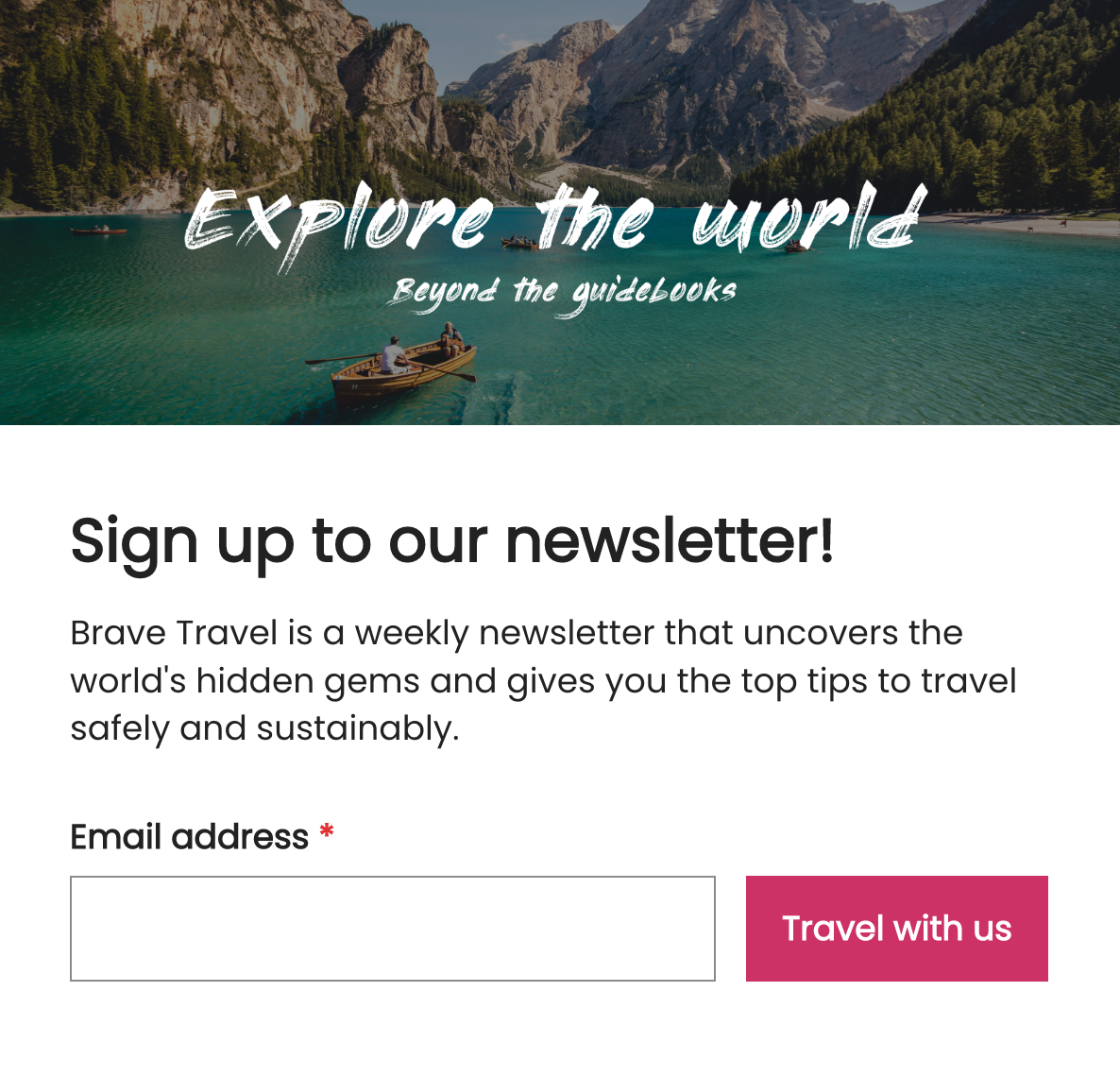
To access this page, click the settings icon, then Campaigns > [Campaign Name] > Signup Forms > Subscription Page.
Property Subscription Page
When you have multiple Campaigns within a Property, you can use the Property subscription page, which will allow new subscribers to select all of the Campaigns they would like to subscribe to. Here is an example :
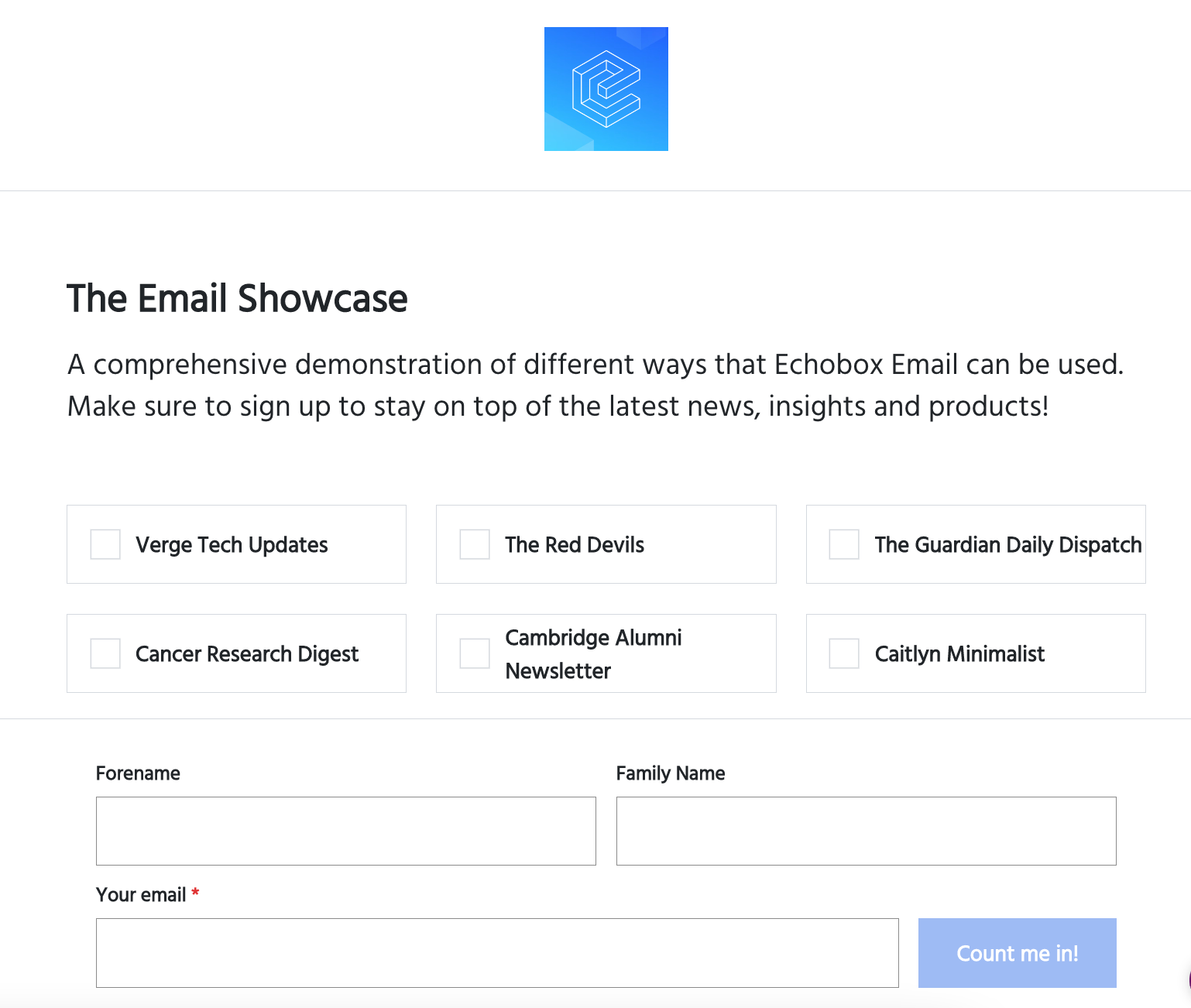
Property Subscription Page
To access this page, click on the settings icon and navigate to Campaigns > All Campaigns > Subscription page.
Top Tip!
Share your links using Echobox Social to let your audience know that they can sign up to your newsletters and other emails.
Embedded Form
Echobox forms can also be embedded directly into your website, so new subscribers don't even have to leave your website to subscribe. These use the same branding and copy as the hosted versions of the subscription page.
To do this, simply insert a code snippet like this into your website’s HTML.
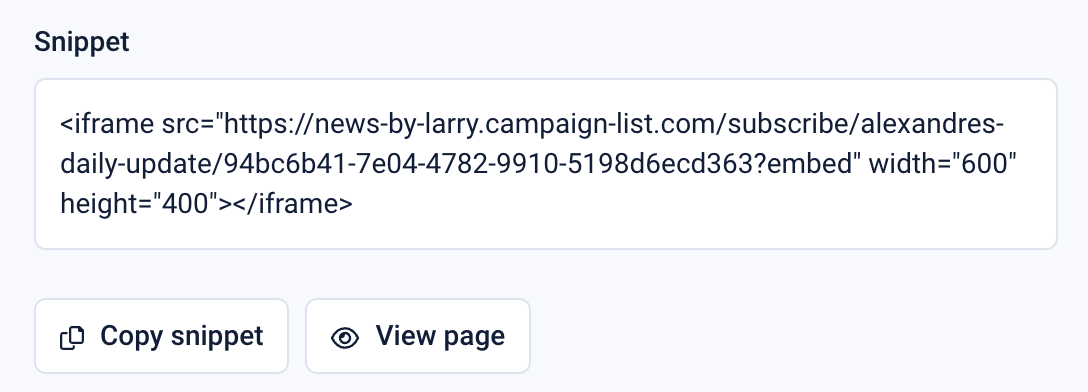
Example snippet
To find a snippet for your Campaign, navigate to Campaigns > [Campaign Name] > Signup forms > Embedded form.
In the image above, you can see two values for width and height. These can be changed to customize the size of the subscription form as it appears on your site. Here are some examples of how the embedded form will respond based on the space you have available:
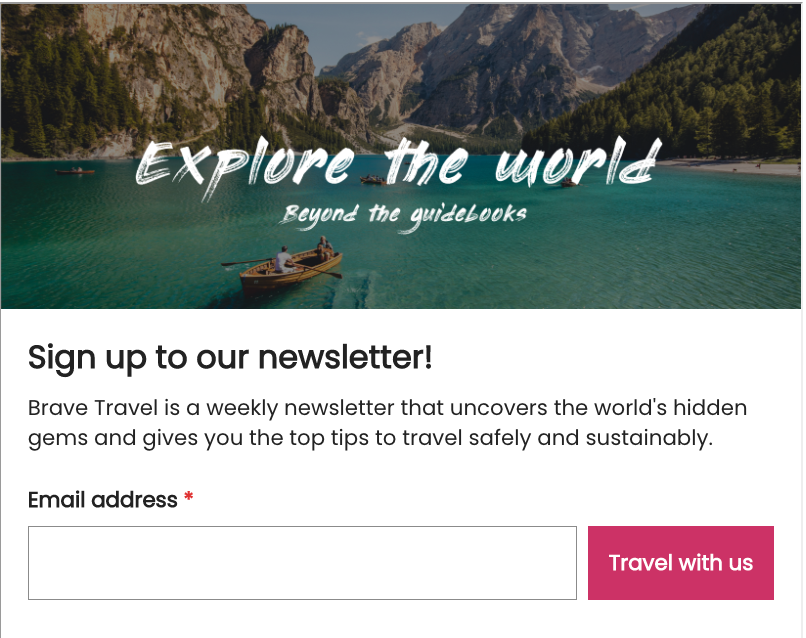
Width = 600, Height = 500
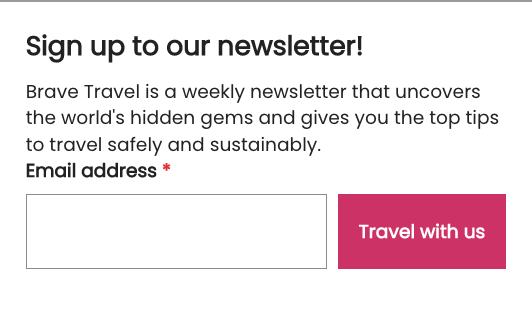
Width = 400, Height = 250
We also provide an embeddable version of the Property subscription page, which can be found at Campaigns > All Campaigns > Embedded form.
Using Your Own Form
If you want to use your own form, you can still send any new subscribers directly to Echobox. This will require you to insert some HTML code into your existing subscription form.
The HTML example below illustrates how you can modify your existing form, or you can use this example and style it how you wish.
Note:
- The campaign URN will need to be updated to your campaign URN which you can copy from your browser URL when you are viewing the campaign in the Echobox Email platform
- You can extend the form to capture any first-party data about your subscribers providing you create the fields within Echobox first and collect the data in the correct format
Syncing Subscribers From Another Platform (Webhooks)
If you use an external database that you need to keep updated with your subscribers, then you can set up an integration with Echobox that will automatically update this data. It can sync any subscriptions/unsubscriptions as well as bounces and complaints.
Please see this walkthrough for more information on setting this up.
Manually Upload
If you are just starting out with Echobox Email or have a list of subscribers to bulk add from an external platform, there are some options for adding subscribers manually.
Upload CSV
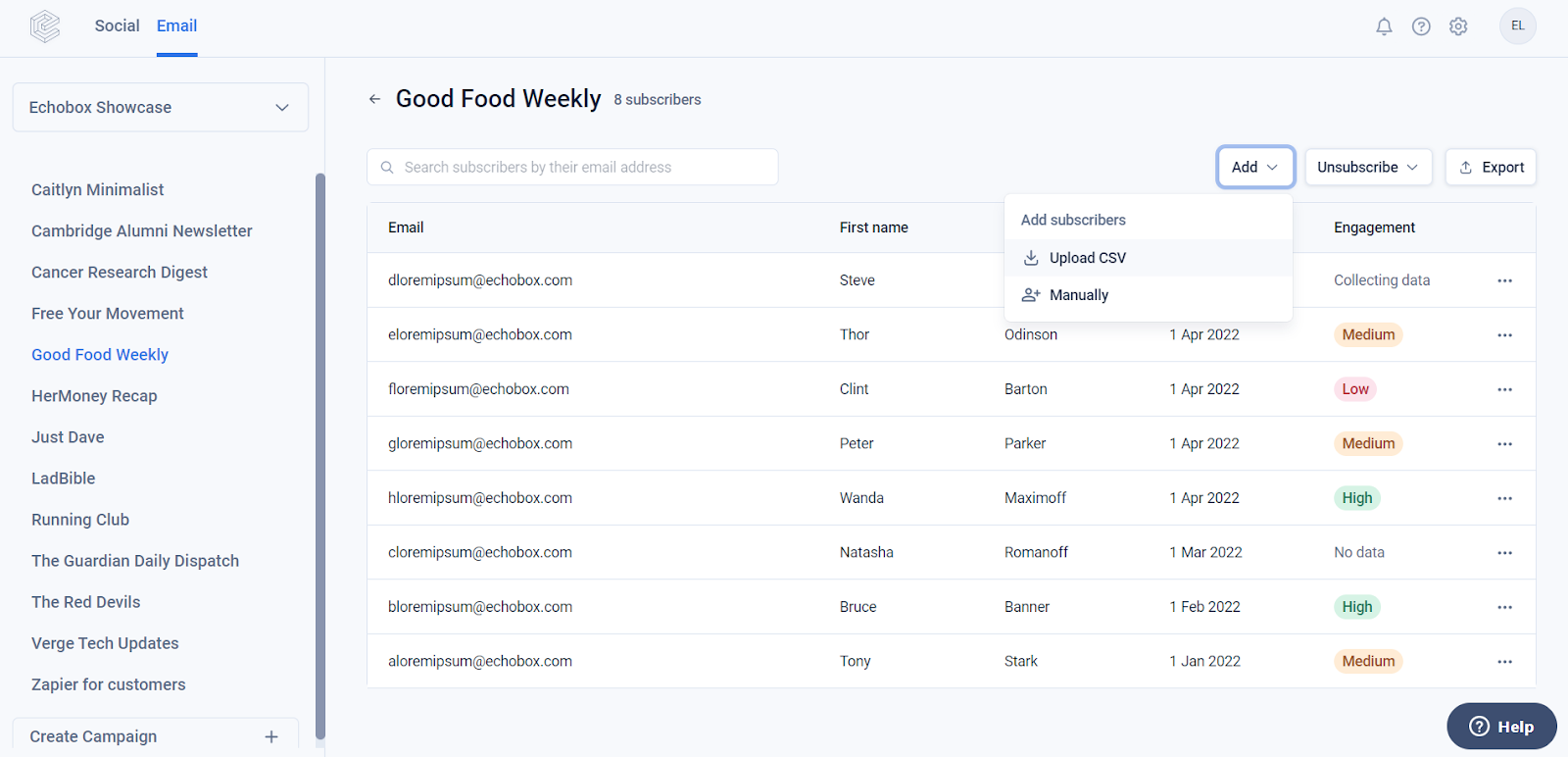
If you want to upload a large list of subscribers, this can be done from your Campaign’s Subscriber Management page by clicking on the Add drop-down and selecting Upload CSV.
CSVs must be in the following format (first name and last name are optional):
Email, first name, last name
subscriber@subscriber.com , Sub, Scriber
A template for formatting your subscribers before upload can be found here.
Add Manually
If you prefer, you can add or remove subscribers one by one using Add > Manually
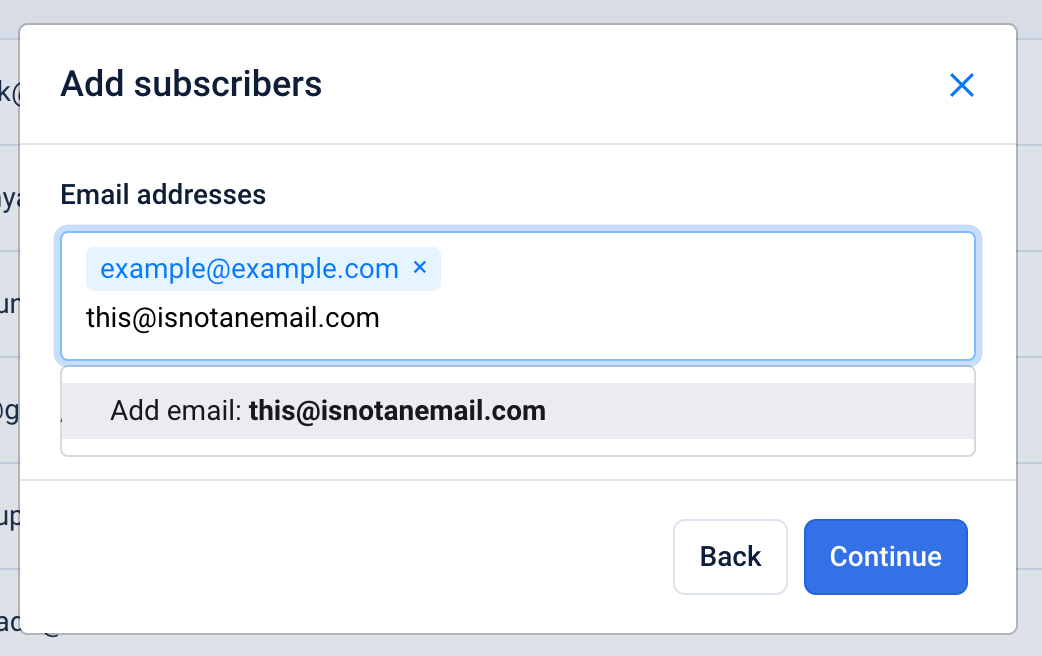
These subscribers must have given explicit permission to receive emails from you. You will be asked to confirm this before they are added to your Campaign.
If the CSV contains subscribers who have previously unsubscribed from the Campaign, they will not be re-added to the campaign and will need to resubscribe themselves via form or via an integration.